Adding media
Bring footage, audio and images into a project.
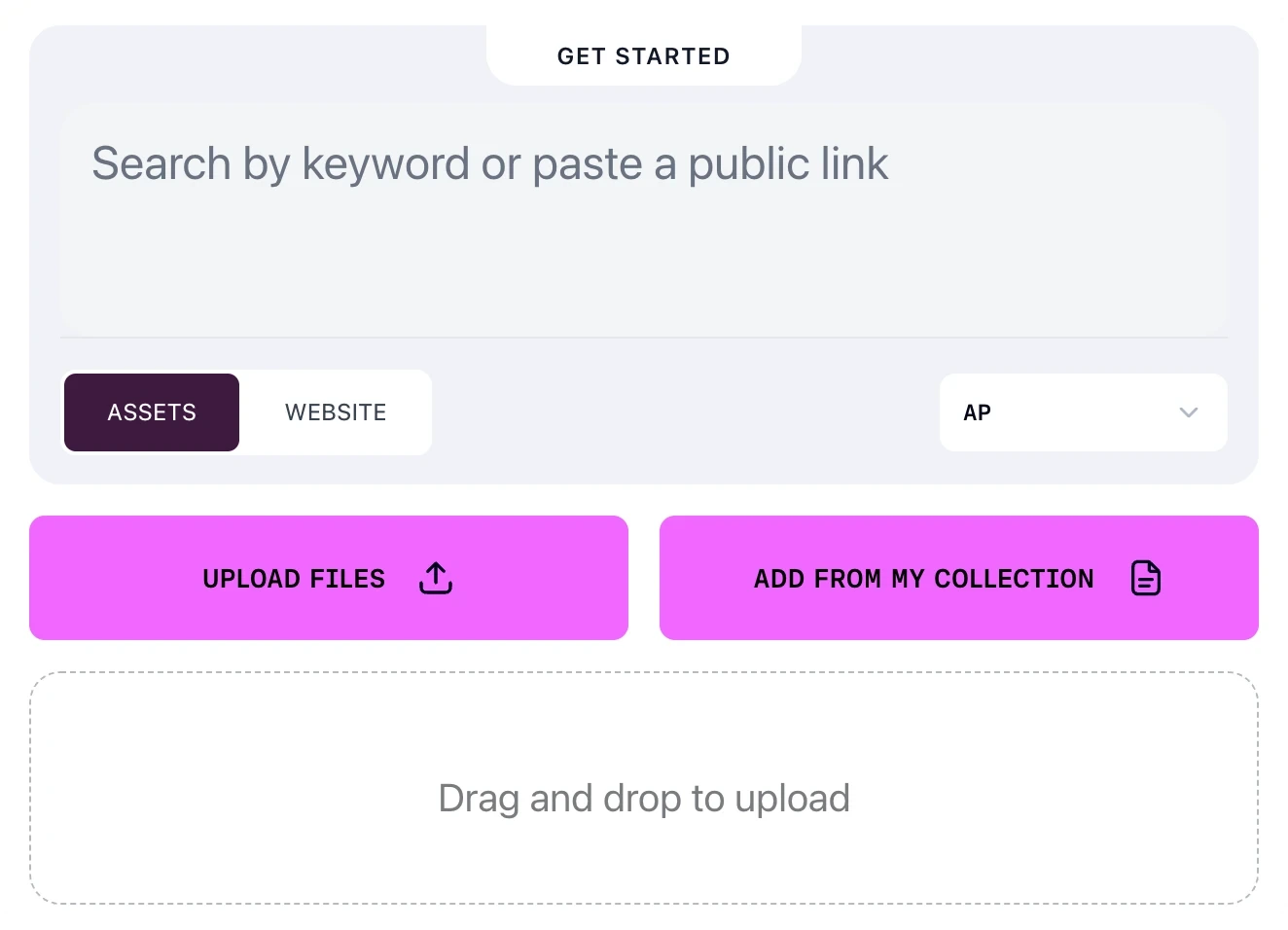
Material reaches Prism in one of two places: your library, which every project on the account can search, or a single project.
Adding to a project
A new project opens on its GET STARTED panel, which gives you three ways in:
- Search by keyword, or paste a public link — the ASSETS and WEBSITE tabs change what you search
- UPLOAD FILES, for footage from your computer, or drag files onto the panel
- ADD FROM MY COLLECTION, for material already in your library
The ASSETS tab carries a provider selector, which starts on AP. The WEBSITE tab drops the selector and changes the field to Paste a URL.
Whatever you add appears in the Project Library panel beside your work.
Adding to your library
Your library lives in Asset Search, which holds everything the account has gathered, across every project.
Open it from the icon rail down the left side. UPLOAD, beside the search box, takes files from your computer; the link icon next to it imports from a link. The home screen's Upload footage and Find footage cards lead to the same place.
Uploading your own files
Drag files anywhere onto the page, or click the drop strip to browse for them.
Upload as many files at once as you like. Each runs on its own, so one bad file does not stop the rest.
Every file gets a row, and the row tells you where it is: Queued, then Uploading with a percentage, then Waiting in queue or Indexing for search, and finally Searchable.
Files added here join your library. They are not attached to any project until you add them to one.
Pasting a link
Choose the link icon beside UPLOAD to open Import from a link, and paste a full URL into the box.
A chip appears as soon as the link is recognised, reading either Google Drive or Direct link. Choose Import.
There is no upload step for a link: the row goes straight to Fetching from link, then through the same processing states as a file.
Watching progress
The Activity tray tracks uploads, links and connected-source imports together. It stays with you as you move around the app, so a batch is never out of sight.
Rows offer Retry when something fails, Stop while a file is still running, and Clear once you have read them.
Moving material into a project
Select what you want in Asset Search, then confirm with USE ASSETS. Searching your library covers the selection step.
From inside a project, ADD FROM MY COLLECTION does the same thing without the destination picker, because the project is already known.
FAQ
Can I start a project from a batch I have uploaded?
Yes. Start a project at the foot of the upload queue creates one from the finished files and opens it.
Why is my file sitting at "Waiting in queue"?
Processing runs through a shared queue. The row shows your position when one is available, and the Activity tray shows how deep the queue is.
Where do I look for material I added last week?
Asset Search. It opens on your newest assets before you type anything.