Tracks and locked tracks
Why some tracks cannot be changed.
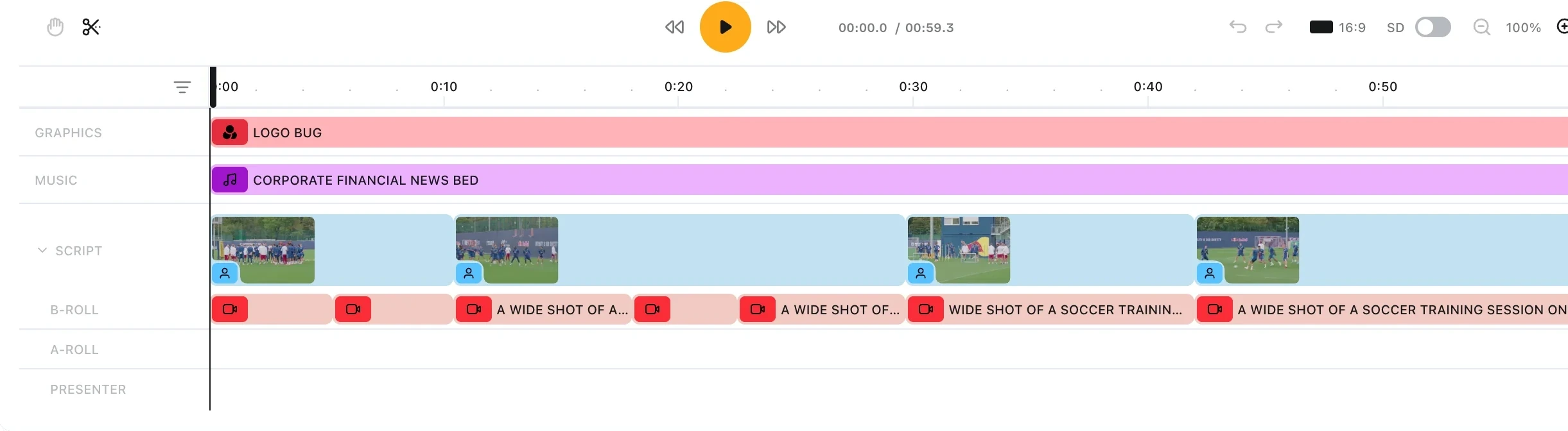
A track is one horizontal row on the timeline. Every clip in the edit sits on one.
Tracks fall into four groups. Some tracks are locked: nothing on them can be moved, trimmed or split.
The four groups
| Group | Where it comes from | What it carries |
|---|---|---|
| Captions | Turning captions on | One CLOSED CAPTIONS clip |
| Root | The edit as a whole | Music and graphics spanning the timeline |
| Content | Your script | The blocks, on the row labelled SCRIPT |
| Block | One block | That block's B-roll, voiceover and graphics |
Block tracks belong to the block above them. Collapse and expand them with the chevron on the SCRIPT label.
Clips are labelled by what they are: PRESENTER for voiceover, BUMPER for a bumper, the block's own name for a SOT.
Blocks, SOTs and the rest of Prism's vocabulary are defined in Core concepts.
Locked tracks
A track is locked when any clip on it carries generated narration or a quote from your footage.
Locked means immutable. Prism refuses all of these, on every clip on that track:
- Dragging the clip along its track
- Moving it to another track
- Dropping new media onto the track
- Resizing either edge
- Splitting it with the blade tool
- Catching it in a marquee selection
There is no unlock control and no override.
Why they are locked
The timing of narration and quotes comes from the audio itself.
Each block's picture is cut against that audio, so moving or trimming it would break the match between the edit and your script.
If the timing is wrong, change the words in the Writers Room and let Prism rebuild the edit.
Reserved labels
A generated edit arrives with named tracks: GRAPHICS, MUSIC, SCRIPT, B-ROLL, A-ROLL and PRESENTER. The script track is numbered, matching the block numbering in your script.
These labels cannot be renamed. Every other track label can.
Hiding locked tracks
Turn off Show locked tracks in the timeline settings to hide the locked rows inside blocks, leaving only the tracks you can act on.
The setting is on by default. Turning it off changes the view only: the clips stay in the edit and still play.
Working with tracks
Hover a track's label to reveal its controls.
- Click the label text to rename it, then click away to save
- Use the up and down arrows to move the track within its own group
- Click the trash icon to delete the track, then confirm
Deleting a track removes everything on it. Only tracks you added yourself show a trash icon.
To create a track, drag a clip or a media card onto the border between two existing tracks. An insertion line appears, and dropping there makes the new track.
FAQ
Can someone unlock a track for me?
No. Locking follows from what is on the track, not from a permission. Rewriting the block in the Writers Room is the only route.