Editing caption text and timing
Correct wording and adjust timings.
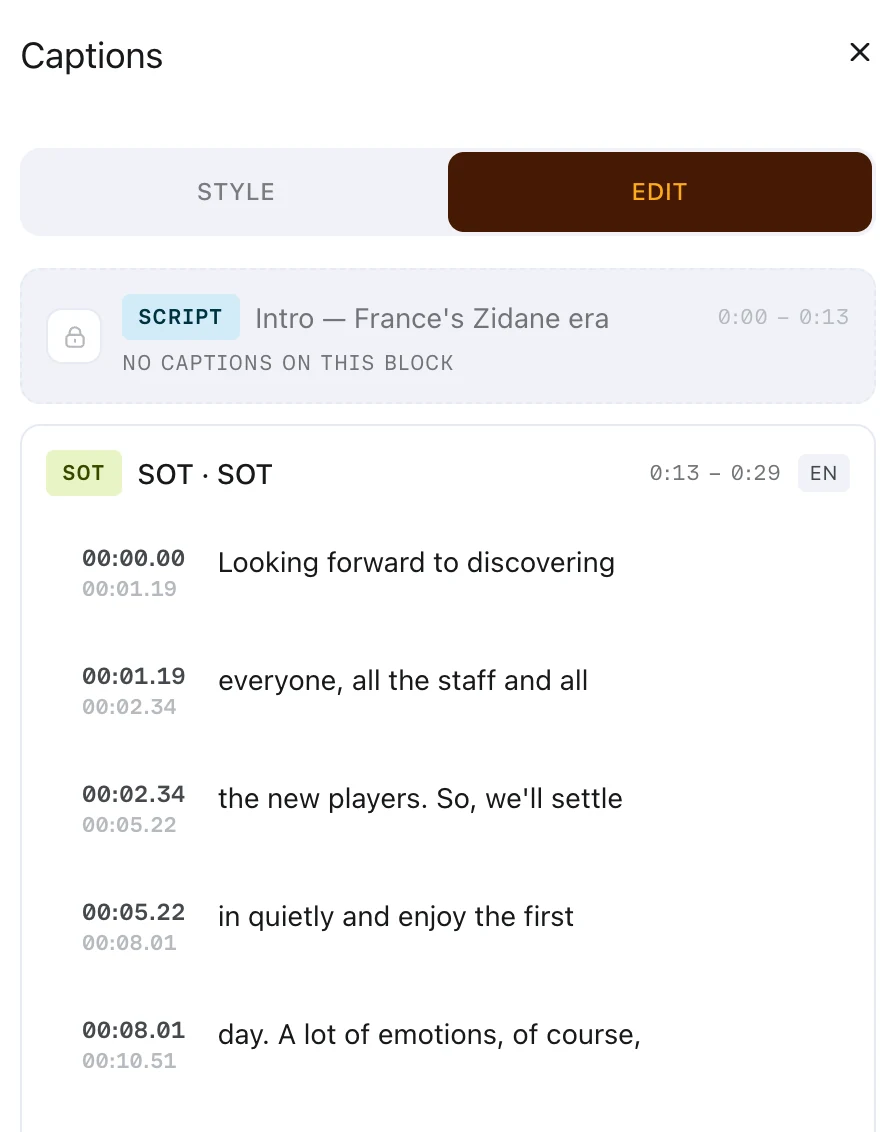
The Edit tab of the Captions panel corrects caption wording and timing, block by block. How captions look is set on Style — see Caption styles.
Opening the Edit tab
Choose Captions in the right sidebar, then the Edit tab.
The tab is greyed out until captions are on, showing Apply a caption style first to enable editing.
Inside, one card appears per timeline block, in timeline order.
Reading a block card
Each card header carries a type chip, the block label and the block's range in the edit.
The chip reads SCRIPT, SOT, FOOTAGE or BUMPER, so you can tell a script line from a quote at a glance.
Rows inside the card highlight as the playhead passes through them.
Correcting the wording
- Find the card for the block you want, using the ranges in the headers
- Click the caption text on the row you want to change
- Type the correction
Click the timeline ruler to move the playhead into a block if you are not sure which card you need.
Corrections are stored against that block, and survive later changes to the caption style.
Correcting the timing
Each row carries an editable start and an editable end timestamp, in minutes, seconds and hundredths.
Click a timestamp and type a new value.
Prism rejects a timing it cannot honour, and the field snaps back to its previous value. Three rules decide that:
- A segment cannot be shortened to nothing
- Segments stay inside the visible range of their clip
- Segments do not overlap their neighbours
Adding and combining segments
Hover the gap between two rows to reveal the pills that apply there.
- Choose Add to place a new caption segment in a gap
- Choose Combine to merge two segments into one
The gap decides which pill you get: a gap wide enough to hold a segment offers Add, and one too narrow offers Combine instead.
There is also an Add a caption segment at the start action for the space before the first row.
Starting a block again
Once a block carries manual edits, a Reset action appears in its card footer.
Reset restores the automatically generated lines for that block and drops your corrections.
A block whose rows were all deleted shows All segments deleted — reset to restore, which is the same route back.
Blocks that cannot carry captions
Some cards are locked and dashed, reading No captions on this block.
Those blocks hold no speech, so there is nothing to caption. There is no workaround, and none is needed.
If the timeline has no blocks at all, the tab reads No blocks in the timeline yet.
Captions on a translated SOT
SOT cards carry a language chip listing ORIGINAL, any finished translations, and languages you can add.
Adding one shows Translating… until it is ready.
Switching a block's language resets the caption edits on that block, and Prism asks you to confirm first.
Choose the language before you correct the wording, so your corrections survive.