Organising outputs
Rename, duplicate, reuse and delete the videos in a project.
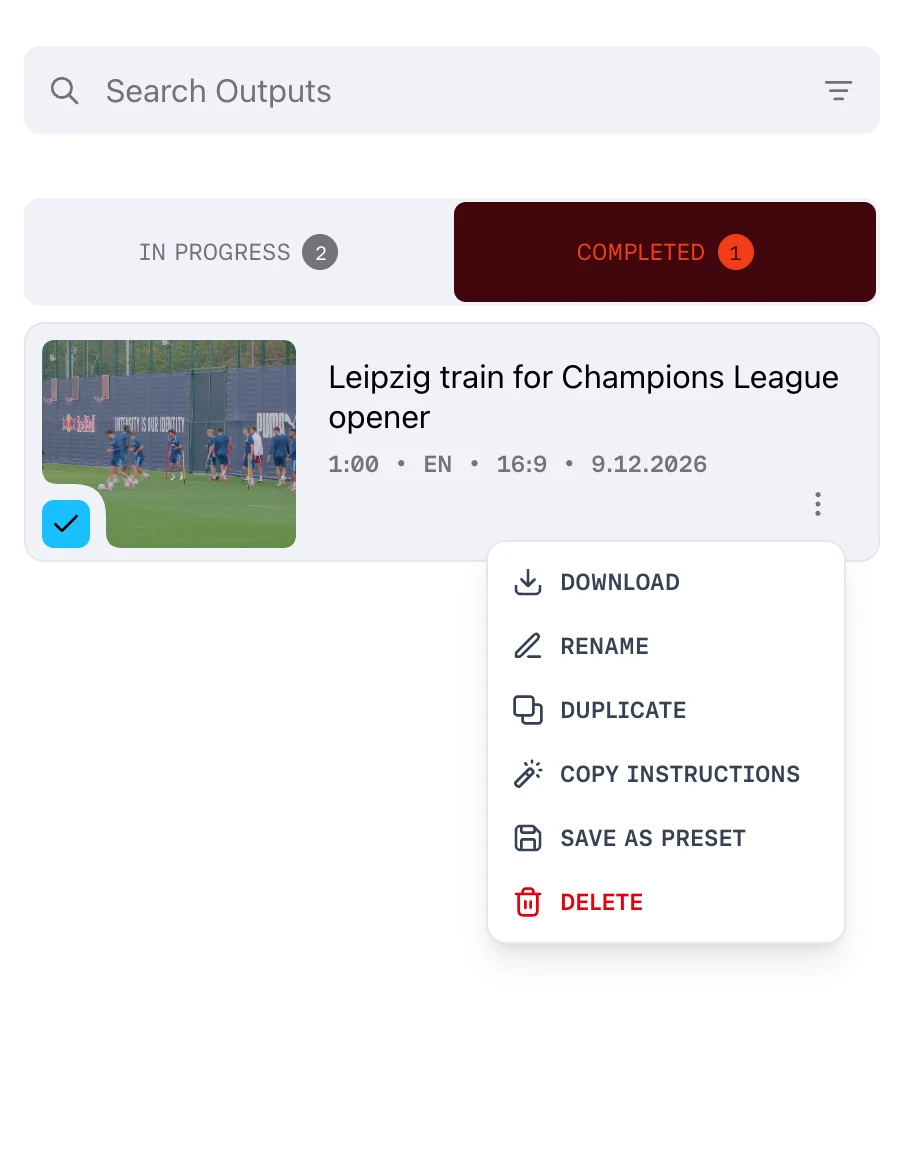
An output is one video. From its menu you can download, rename, duplicate, reuse or delete it.
A project holds as many outputs as the story needs, and they all draw on the same Project Library. Core concepts explains how an output moves through Prism.
Where outputs live
A project's outputs live on the Assignment Desk, in the Project Outputs panel on the right.
The project switcher carries the same list. It shows a project's OUTPUTS, and lists OUTPUTS IN PROGRESS separately while Prism is still working on one.
Finding an output
The Project Outputs panel has its own search box, Search Outputs, and splits outputs into IN PROGRESS and COMPLETED.
The output menu
Every output has a menu, opened from the More options control on its card.
| Action | What it does |
|---|---|
| Download | Save the rendered video |
| Rename | Change the output's name |
| Duplicate | Make a second output from this one |
| Copy Instructions | Take the instructions this output was built from |
| Save as Preset | Save this output's settings for reuse |
| Delete | Remove the output |
That is the menu on a completed output. The set changes with the output's state: one that is still working, or stuck, has no Download and offers Retry Video Editing in its place — see When a render fails.
Duplicating an output
Duplicate is how you make a variant. Cut the story once, duplicate it, then change what the second version needs.
Both outputs sit in the same project, so they share one Project Library. Nothing has to be uploaded twice.
Reusing an output's settings
Two of those actions exist for repeating a way of working rather than copying a video.
Copy Instructions takes the instructions behind an output, so the next brief can start from them. Save as Preset goes further and stores the whole combination — format, presenter, script style and video style — as one choice you can apply later.
Saving an output as a preset
- Open the output menu
- Choose Save as Preset
- Type a name under Preset name
- Choose Save
Prism confirms with Preset saved. The preset then sits with the rest, ready for the next output.
Applying a preset to the next output
A preset is how a house format outlives one video.
When you brief a new output, the first four presets appear as one-click shortcuts and the rest sit under More presets. Choosing one fills the whole brief, and Clear removes it again.
There is no way to pin a favourite to that row of four.
Downloading a finished output
Download in the output menu saves the rendered file. The same file is on the output's Distribution page, with a player and a Download Video button.