Getty previews and licensing
How previews differ from licensed footage.
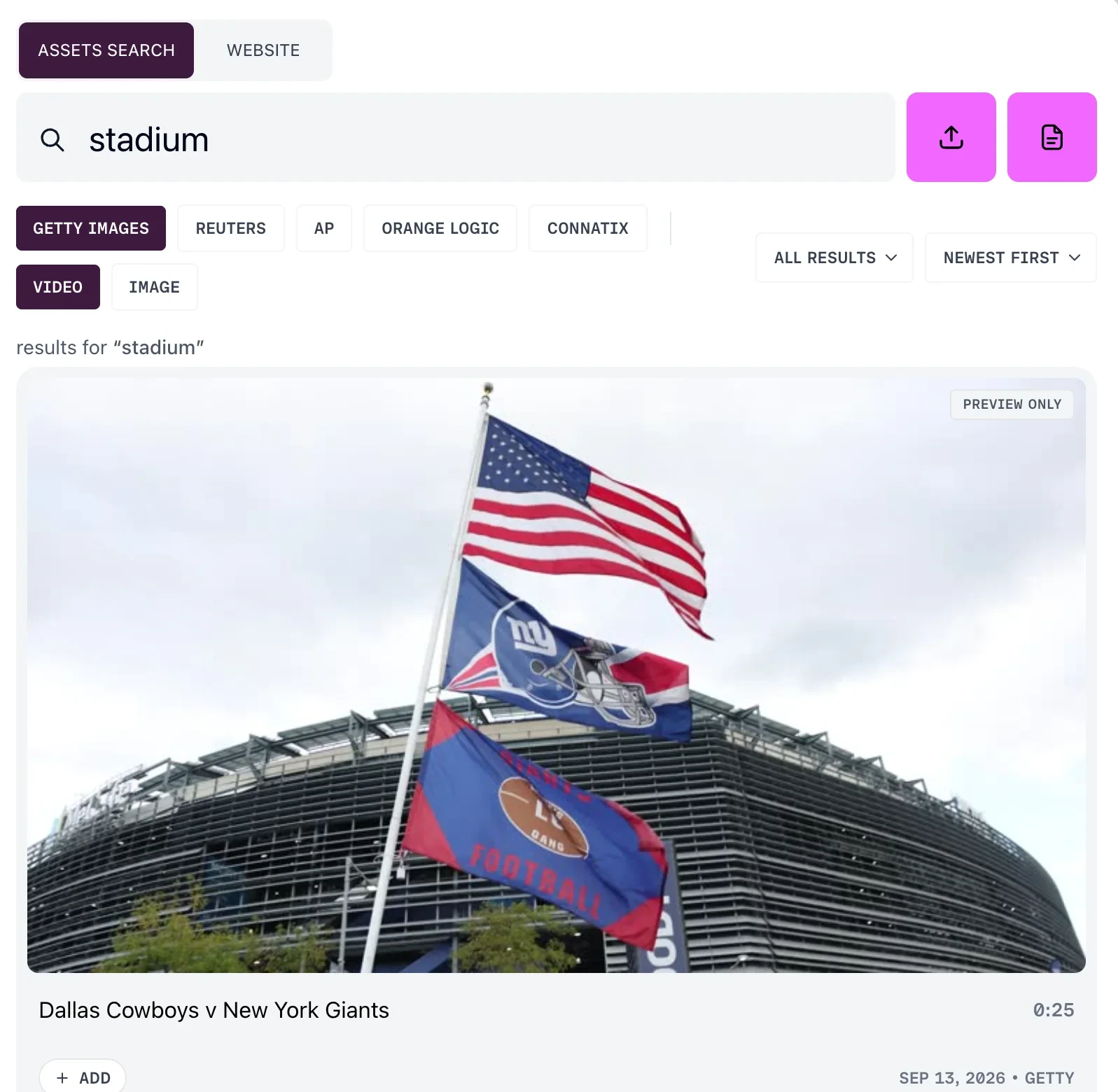
A Getty result can come into your library two ways: as a preview, or as a licensed file. They are different files, and Prism asks you which one you want.
What you may do with Getty material is governed by your own agreement with Getty, not by Prism.
Preview or licensed
Choose Add to library on a Getty result and the Add Getty asset dialog offers two options.
- Preview (watermarked) — described in the product as free, lower resolution, and carrying a Getty watermark
- Licensed (full resolution) — described as full resolution and unwatermarked, and as using one download from your Getty plan
Both land in your library and both become searchable. The difference is the file itself.
What the badges tell you
Getty results carry a badge showing where the item stands against your subscription:
- Included in plan
- Previously licensed
- License required
- Getty connected
- Preview only
The badge reports what Getty says about that item for your account, so read it before you choose.
When a licence is required
Some items are not part of your subscription. The badge reads License required, and opening it gives you the License Required dialog, which explains that the item has to be licensed on Getty first.
You get three choices:
- Open Getty — leaves Prism for Getty and cancels the import
- Add Preview — brings in the watermarked version instead
- Cancel — closes the dialog without importing
Licensing happens in your own Getty account, not in Prism.
Swapping a preview for the licensed file
Once you have licensed an item, come back and add it again. That second add pulls the licensed asset into your library.
If it still arrives as a preview, the licence may not have gone through yet. Prism suggests waiting a few minutes and then contacting Getty support.
Connecting your Getty account
Without a connected Getty account, the connector works for search and preview only.
In that state, adding a Getty result gives you the watermarked preview and a message telling you to connect Getty in Settings to add licensed content.
To connect it:
- Select your avatar at the bottom of the rail, then CONNECTORS
- Save your Getty API credentials — the Connect step fails without them
- In Licensed Downloads, choose Connect Getty Account
- Complete the sign-in on Getty, which returns you to Prism
You connect and disconnect Getty yourself. On Team and Enterprise plans, only an account admin can connect it.
Premium material
Getty results carry a Premium Access filter with three settings: All Results, Exclude Premium and Premium Only.
Premium items are badged in the results, so you can see what you are looking at before you open anything.