Music and audio levels
Add music and balance it against speech.
A generated edit arrives with a music bed already on the MUSIC track, its clip named after the piece of music.
Everything about that bed is yours to change: which track plays, which part of it plays, and how loud it sits under the speech.
Levels are set clip by clip, from the AUDIO section of the properties panel.
Adding music
Open Elements in the right sidebar and choose the Audio tab.
- Browse Prism Music for the shared library, or Brand Music for your own
- Choose Show All to see a full section, then filter it by Category or Tags
- Play a card to audition it before you use it
- Drag the card onto a music track in the timeline
Drop onto the border between two tracks to create another music track. You can add as many as you need; each is named in sequence — Music 2, Music 3, and so on.
Choosing which part plays
Select the music clip and the properties panel opens with a SOURCE RANGE section.
Drag the source-range selector to pick the passage of the track that plays, rather than always starting from its opening bar.
The read-out beside it shows the position, the out point and the total length, and the play button auditions your choice.
Setting levels
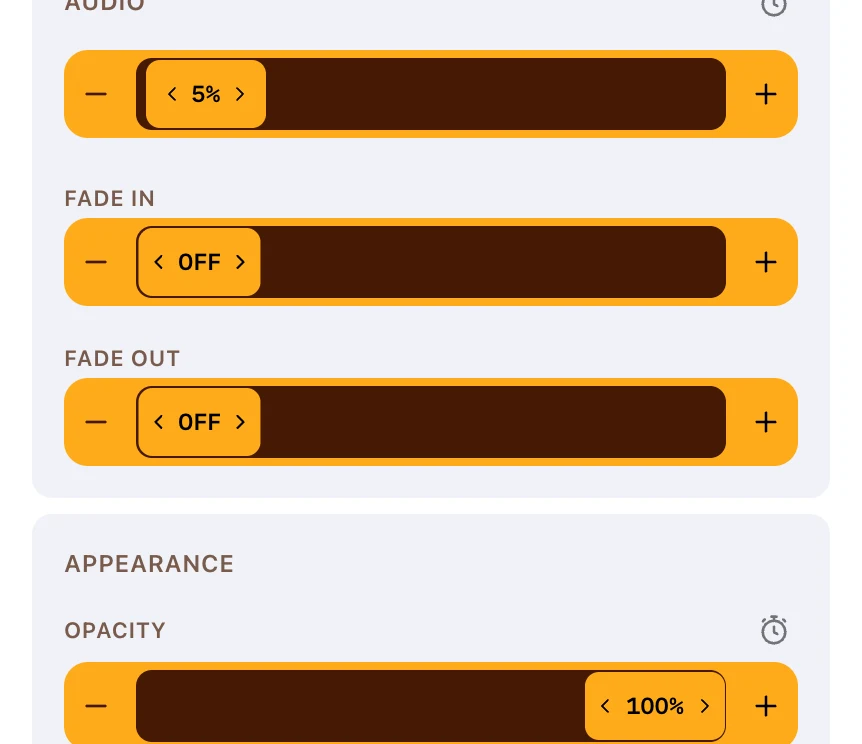
Select any clip that carries sound and open its AUDIO section.
Drag the volume bar to set the level. The change previews live as you drag and commits when you release.
The ranges differ by clip type.
| Clip | Volume range |
|---|---|
| Music | 0% to 100% |
| Footage and SOT clips | 0% to 300% |
B-roll arrives at 5% by default, which is why it sits under the narration rather than fighting it.
Balancing music against speech
The music bed is set once, for the whole clip. Prism has no automatic ducking control that drops it under speech.
Two ways round it:
- Set the music low enough to sit under the narration everywhere it plays
- Keyframe the volume, then move the playhead and change the level where the speech starts and ends
Keyframing writes a value at the playhead, so the level moves between the points you set instead of holding flat. Turning it on says as much: Keyframing on — moving the playhead and changing the value adds a keyframe.
Fading in and out
Fade In and Fade Out sit in the same AUDIO section.
A fade runs from zero up to three seconds, or half the clip's length, whichever is shorter, in tenths of a second. At zero the control reads OFF.
Fades are a better first move than a hard level change at a music clip's start or end.
Muting a clip
A pill toggle in the clip's SOURCE header mutes and unmutes it.
Use it to check a mix quickly, or to silence a piece of footage you want for picture only.
Muting is separate from volume, so unmuting restores the level you had set.
Removing music
Delete the music clip and confirm Delete Music.
Deleting a whole music track removes every clip on it, and Prism warns you before it does.
FAQ
Can I use my own music files?
Yes, through your brand kit, which accepts MP3, WAV, FLAC, AAC and M4A.