Size, position and crop
Frame a clip inside the video.
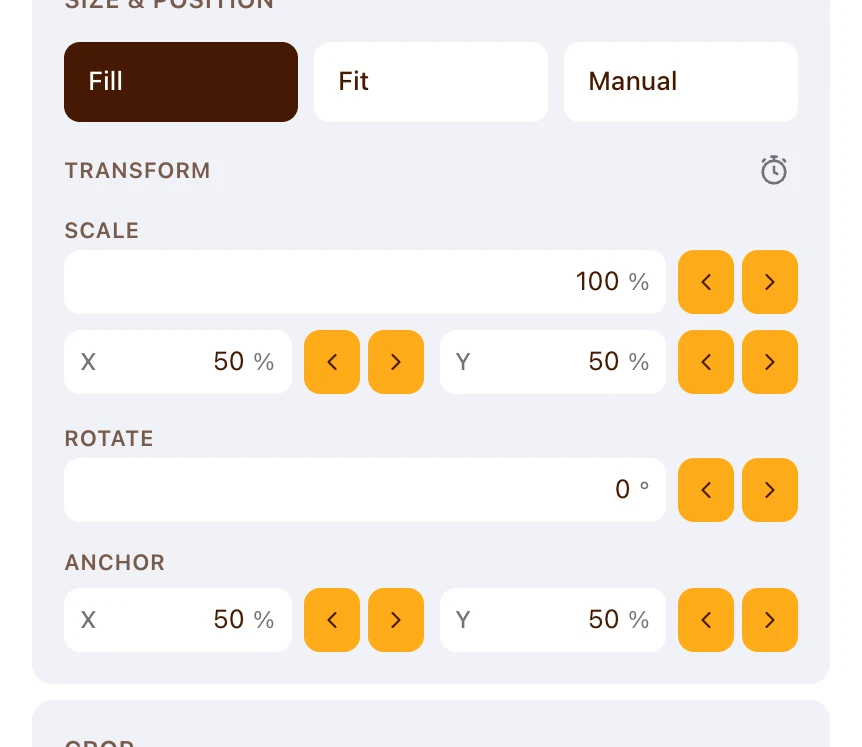
Framing is set in the Size & Position and Crop sections of a clip's properties panel, and a clip can also be dragged directly on the player.
The controls apply to footage, SOT clips, still images and imported graphics.
Fill, Fit and Manual
Size & Position opens with a segmented control offering three framing modes.
| Mode | What it does |
|---|---|
| Fill | Scales the clip until it covers the frame, cropping whatever overflows |
| Fit | Scales the clip until all of it is visible, leaving empty area around it |
| Manual | Hands scale, position and rotation to you |
Fill is the sensible default for footage shot in the same aspect as your output.
Framing on the player
Pause playback first. The selection tools draw only on a paused frame.
- Click the element in the player to select it, which draws a box around it
- Drag the body of the box to move the clip
- Drag a corner handle to scale it
- Drag the rotate handle to turn it
Prism snaps to the frame's edges and centre as you drag, so a centred graphic lands centred.
Typing exact values
The panel fields take the same settings as numbers, which is the way to match two clips exactly.
Each field can be dragged to scrub or clicked to type, as its hint says: Drag to adjust · click to type.
| Field | Range |
|---|---|
| Scale | 10% to 400% |
| X and Y | −100% to 200% |
| Rotate | −180° to 180° |
Cropping
The Crop section trims from each edge independently.
- Set Left, Right, Top and Bottom between 0% and 100%
- Switch on Fill Frame to scale the cropped region back up to fill the frame
- Choose Reset to drop the crop entirely
Opposing edges cannot meet. Prism keeps at least 1% of the clip in view.
The helper text under the section tells you which behaviour is active: Cropped region is scaled up to fill the frame. or Cropped edges are trimmed; background shows through.
Fill Frame stays disabled until a crop exists, since there is nothing for it to scale.
Cropping on the player
Double-click the selection box to enter crop mode, then drag the crop handles.
A single click leaves crop mode again.
Crop mode, like selection, draws only while playback is paused.
Filling the empty area
A clip that does not cover the frame leaves space, and Background decides what fills it.
- Choose None to leave the frame's own background showing
- Choose Blur for a blurred enlargement of the clip itself
- Choose Color and pick a swatch for a flat colour
Background is hidden in Fill mode, because a filled frame has no empty area, and hidden on imported graphics, which carry their own transparency.
Opacity
Footage and still images carry an Opacity control under Appearance, from 0% to 100%.
Lower it to lay a clip faintly over what is beneath it.
Limits
Framing is per clip. There is no control that applies one framing to several clips at once, so match them by typing the same values into each.
Prism draws no title-safe or action-safe guides. Judge edge-of-frame text against the player itself.
FAQ
Does cropping change my original file?
No. Framing changes how the clip is shown in this edit. Your material in the Project Library is untouched.