Briefing a video
Choose the presenter, styles and format a video is made from.
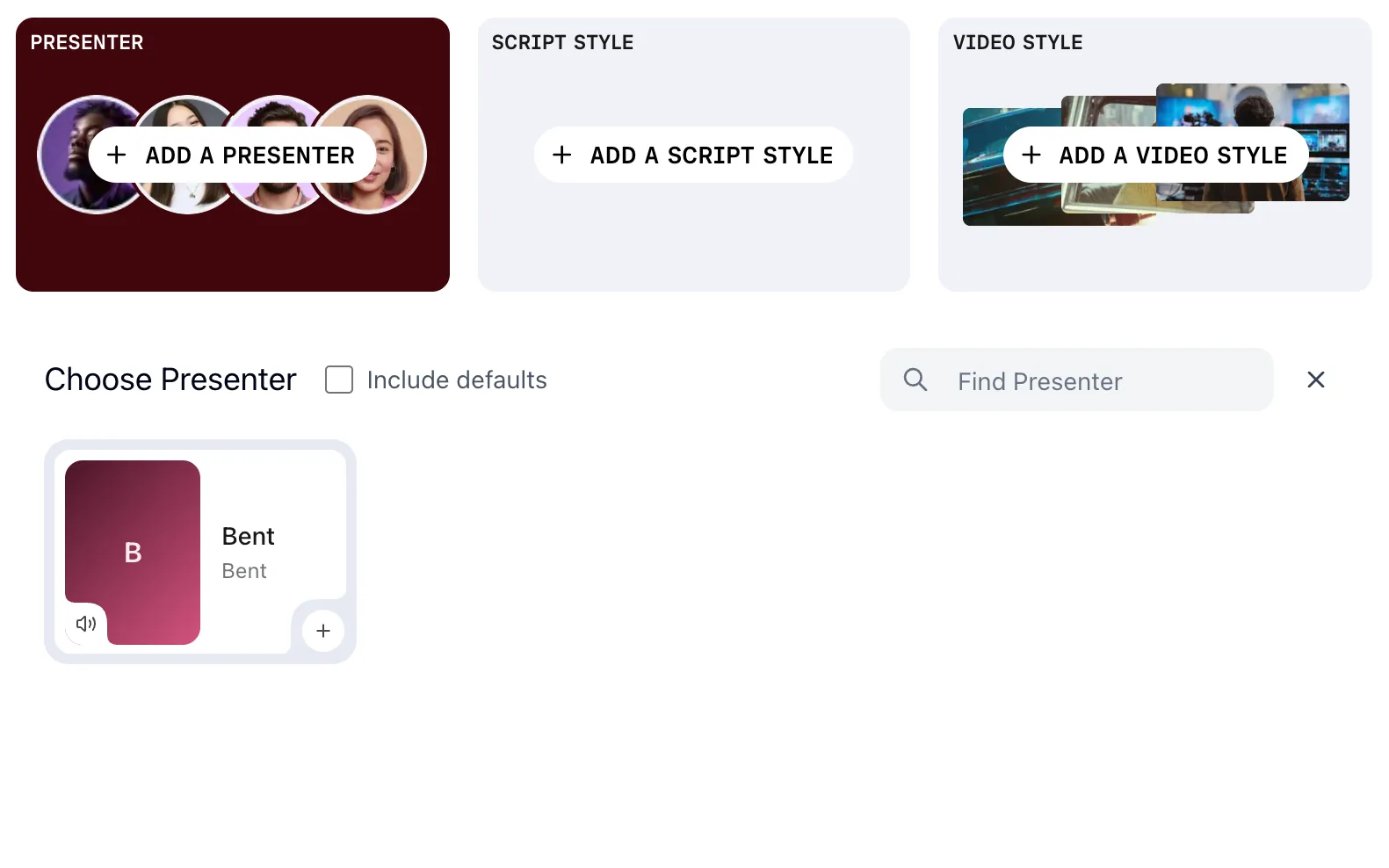
A brief is the set of choices Prism makes a video from. Three are required, and the rest shape the result.
Start from a preset
If your account has presets, start there. The first four sit as cards in the PRESETS row, and the rest are under More presets, which shows how many more there are. Each one summarises its format on one line, such as 1:00 · 16:9 · ENGLISH.
Choosing one fills the format, the presenter and both styles, and the brief is ready to create. CLEAR, above the row, empties the brief so you can start again.
You can change anything a preset filled. Presets covers making your own.
Choose a presenter
ADD A PRESENTER opens Choose Presenter below the brief. It lists your account's presenters, with Find Presenter to search them. Tick Include defaults to add Prism's own.
The speaker icon on a card plays a sample of the voice. Choose a presenter with the + on its card.
The slot then shows the presenter's name and mode, such as PERSONALITY IN SCRIPT · VOICE ONLY. Synthetic voices explains the modes.
Choose a script style
ADD A SCRIPT STYLE opens Choose script style, with Find script style to search it. Each card carries a name and a line on how that style writes. Choose one with the + on its card.
Script styles covers what a style holds.
Choose a video style
ADD A VIDEO STYLE opens Choose video style, with Find video style to search it. The style decides the pacing, graphics, music and framing.
Video styles covers what a style holds.
Change a choice
A filled slot carries a pencil. Choose it to open the picker again, and pick something else. The rest of the brief stays as it was.
When a video style takes over
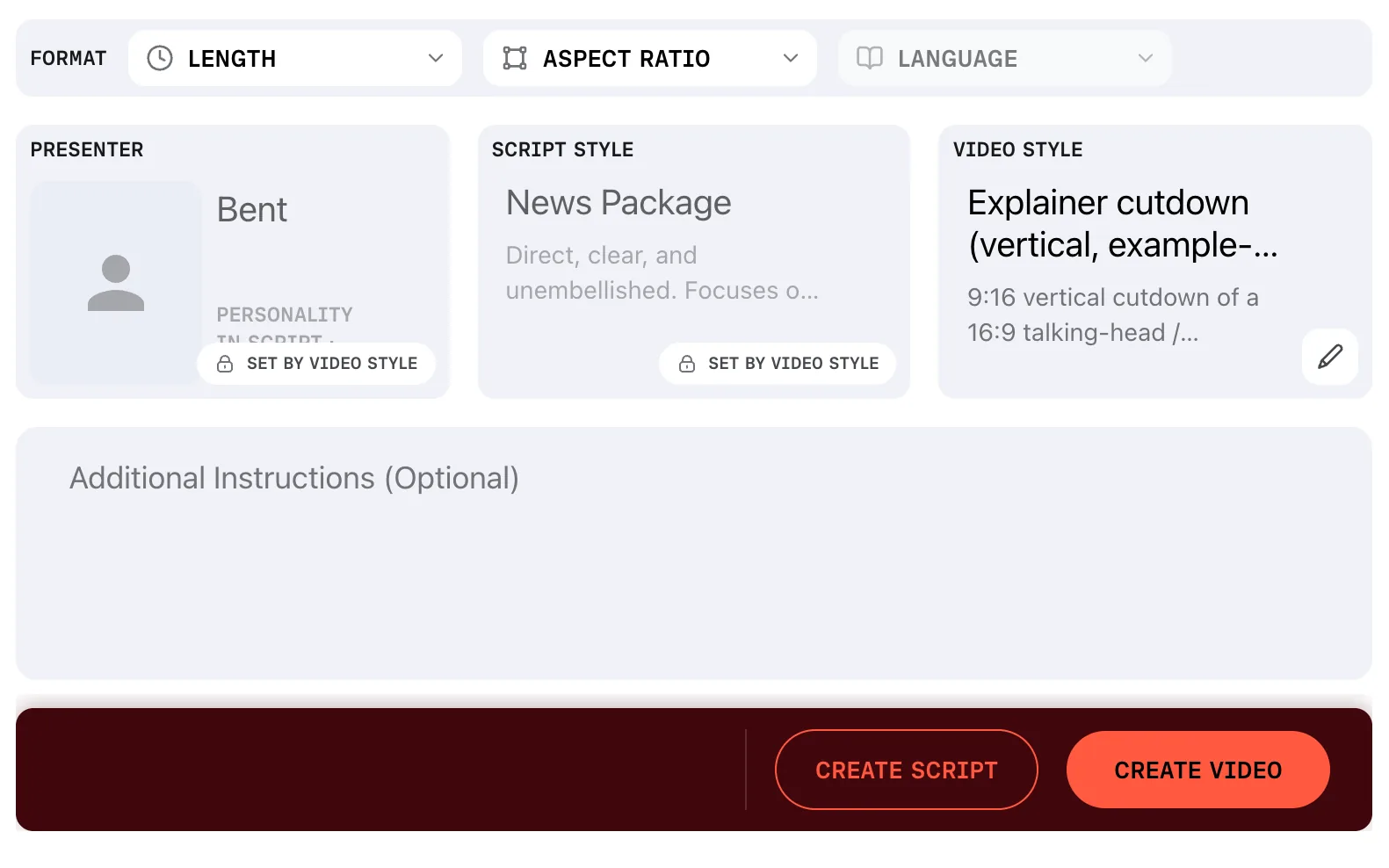
Some video styles bring their own presenter, their own script rules, or both. Choose one, and the slot it replaces greys out with a padlock and the badge SET BY VIDEO STYLE. What you picked there is not used.
Set the format
LENGTH is a dial: step it with the arrows, from 0:45 up to 4:45. ASPECT RATIO is 16:9 for landscape or 9:16 for vertical. LANGUAGE sets the language of the video.
Add instructions
Additional Instructions (Optional) carries anything else Prism should know about the assignment, in your own words: an angle to lead with, a name to get right, a point to leave out.
For a writing rule that applies to every video, use a guide instead.
Save a brief that works
When a video comes out right, open its menu in Project Outputs and choose Save as Preset. The next brief is then one click.