Trimming and splitting
Change where a clip starts, ends or divides.
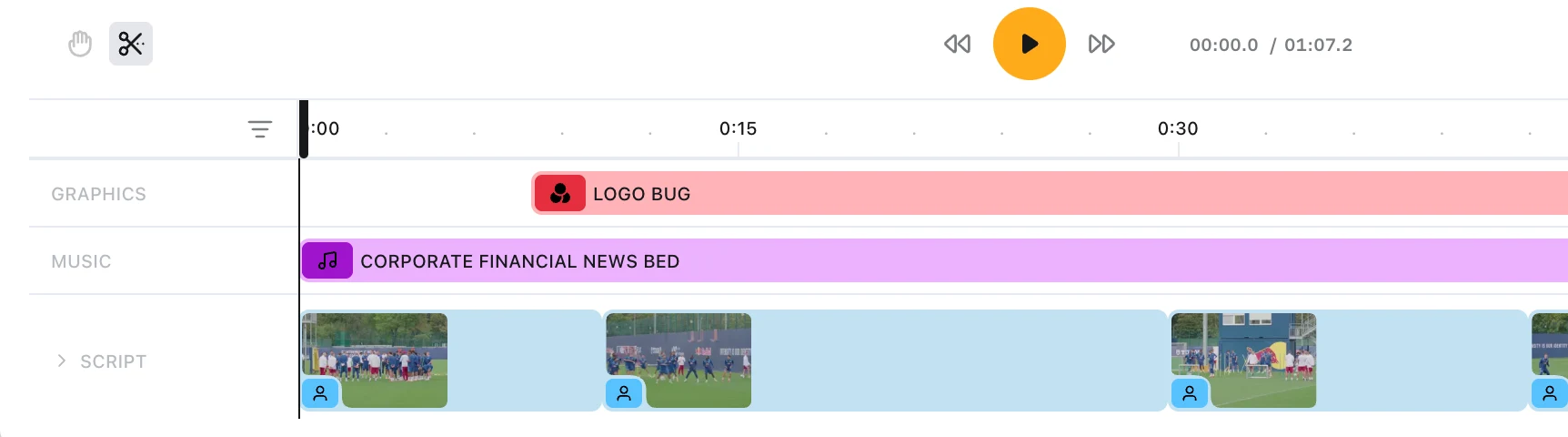
Trimming and splitting act only on the clip you point at. Neither rearranges the rest of the timeline.
Trimming an edge
Hover the left or right edge of a clip. The cursor becomes a resize arrow and an orange indicator appears.
- Drag the right edge to change the clip's length, leaving its start where it is
- Drag the left edge to move the start, leaving its end where it is
- Release to commit, which counts as one undo step per drag
Trimming stops, it does not push
A trim clamps at the neighbouring clip. It never pushes that neighbour along, and no cascade runs down the track.
So if a clip refuses to grow any further, something is already sitting in the space.
Move the neighbour first, then come back and trim.
Clips cannot be trimmed shorter than a single frame, and locked clips cannot be trimmed at all.
Trimming inside the source
Trimming on the timeline changes how long a clip runs. To change which part of the footage it plays, use the isolated preview.
Click a footage or SOT clip in the timeline. The player shows that clip alone, and the control bar becomes a source trim bar.
- Drag the IN or OUT handle to move the start or end point
- Drag the middle of the bar to slip the clip within its source
- Click the bar to seek through the footage
The player follows you live, and the change commits when you release.
Splitting with the blade
- Click the scissors button in the control bar to turn the blade on
- Point at the moment you want to cut
- Click to split
Click the scissors button again to leave the blade without cutting anything.
While the blade is on, a red dashed line shows where the cut will fall. It snaps to nearby clip edges, and to the playhead in preference to them.
After a split
The blade turns itself off as soon as it cuts. You do not need to leave it.
Prism then selects the new right-hand clip, which is usually the one you wanted to move or delete.
What cannot be split
Clips carrying narration or a quote sit on locked tracks, and the blade will not cut them.
Point at one and the cursor turns to not-allowed, with the tooltip Cannot split locked clip (TTS / SOT).
There is no way around that here. Change the words in the Writers Room instead, and read Tracks and locked tracks for why.
FAQ
Does splitting a clip change my footage?
No. A split divides the clip on the timeline. The original media is untouched.