Project Library
The media bin inside a project.
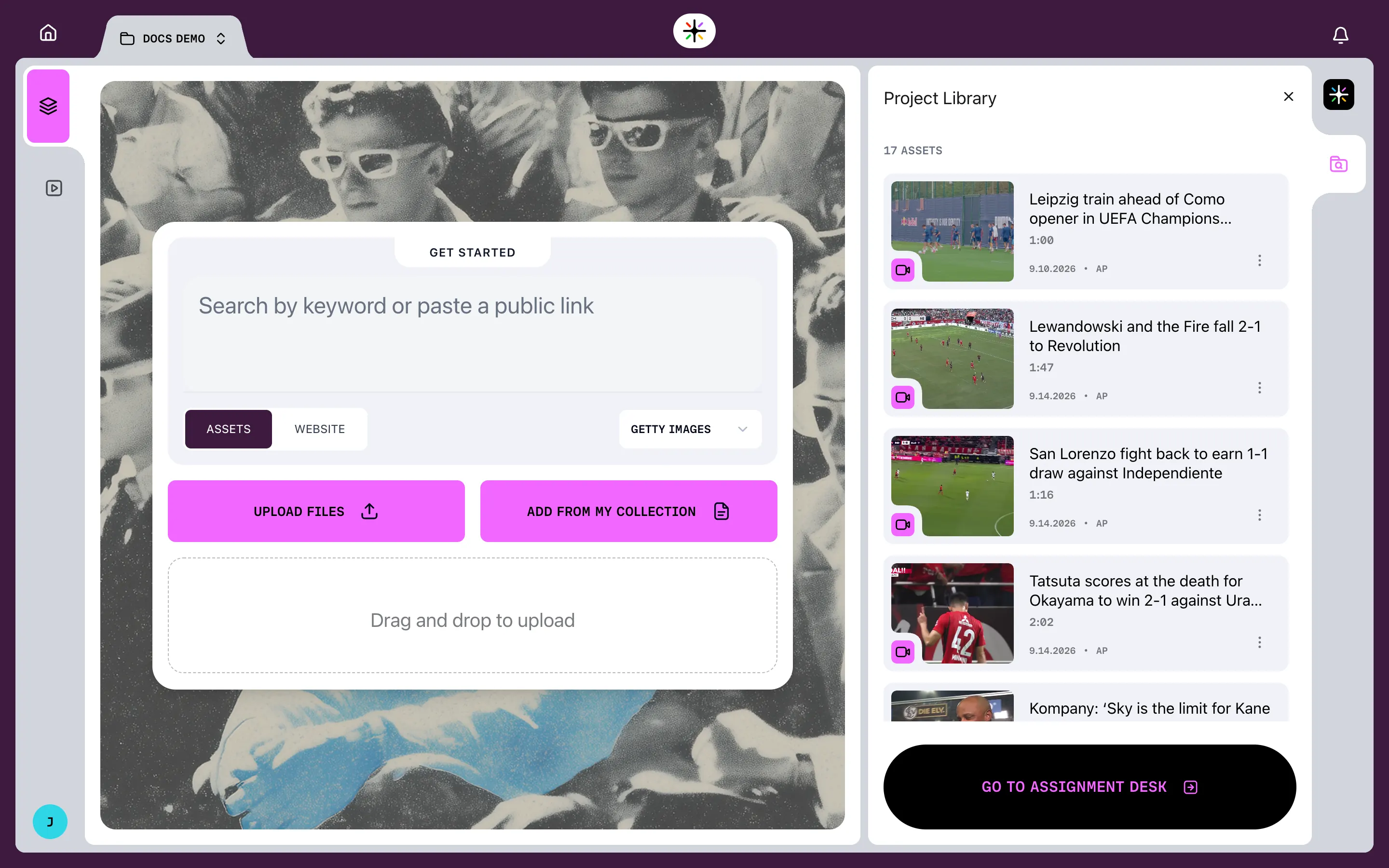
The Project Library contains the media available to your current project.
Anything you upload, search for or pull from a link lands here, and everything you cut with comes from it.
Where it is
The library sits in a panel beside your work. You can close it with Close project library panel and bring it back when you need it.
While the project is empty the panel prompts you to add something. Once material arrives it shows a count above the list — 1 ASSET, and so on.
An asset that is still being analysed says what stage it has reached — PROCESSING..., then scene and moment detection — and settles once it is ready to use.
Adding material
Three routes, all on the GET STARTED panel of a new project:
- Search by keyword, or paste a public link — ASSETS and WEBSITE change what you search
- UPLOAD FILES, for footage from your computer, or drag files onto the panel
- ADD FROM MY COLLECTION, for material already in your library
Adding from your collection
ADD FROM MY COLLECTION opens your library in an adding mode. A banner names the project you are adding to, so you always know where things are going.
- Select the assets you want — a count appears, with a CLEAR control beside it
- Confirm with the button at the top, which names the project and the number selected
- The assets appear in the Project Library panel
What an asset looks like
Each entry shows a thumbnail, its title, its duration, and a provenance line giving the source and the date it was filed — AP, 9.10.2026.
More options on an entry opens its menu:
| Action | What it does |
|---|---|
| Download | Save the original file |
| Copy Asset ID | Copy the asset's identifier |
| Remove from Project | Take it out of this project's library |
Removing an asset takes it out of this project. It stays in your wider library, so ADD FROM MY COLLECTION can bring it back.
Brief a video
Once the library has material, you can go to the Assignment Desk. That is where you brief the video, and it is the natural next step from here.
FAQ
Is this the same as Asset Search?
No. Asset Search is your whole library across projects. The Project Library is what this one project can use.
Can I remove something?
Yes. More options on the entry offers Remove from Project. That removes it from this project only — the asset stays in your library.