Undo, autosave and versions
Step back, and return to an earlier edit.
Prism keeps three separate safety nets in the Editing Suite: undo, autosave, and named versions.
They do different jobs. Undo steps back through what you did, autosave protects the current state, and a version is a point you marked and can return to.
Undo and redo
The control bar carries undo and redo buttons.
History goes back 50 steps. Older steps fall off the end and cannot be recovered.
The Writers Room and the Editing Suite keep separate histories. Undoing in the editor never reaches back into your script.
What counts as one step
Prism groups a whole gesture into a single entry, rather than one entry per pixel of movement.
- Trimming an edge, committed when you release
- Deleting several selected clips, as one entry for the group
- Dragging a multi-selection
- Splitting a clip, undone by rejoining the two halves
So one undo reverses one thing you did.
The isolated clip preview carries its own undo and redo buttons, so you can step back without leaving it.
Autosave
Prism saves the edit every 30 seconds while anything is unsaved.
There is nothing to switch on and no save button to find. If nothing has changed, no save runs.
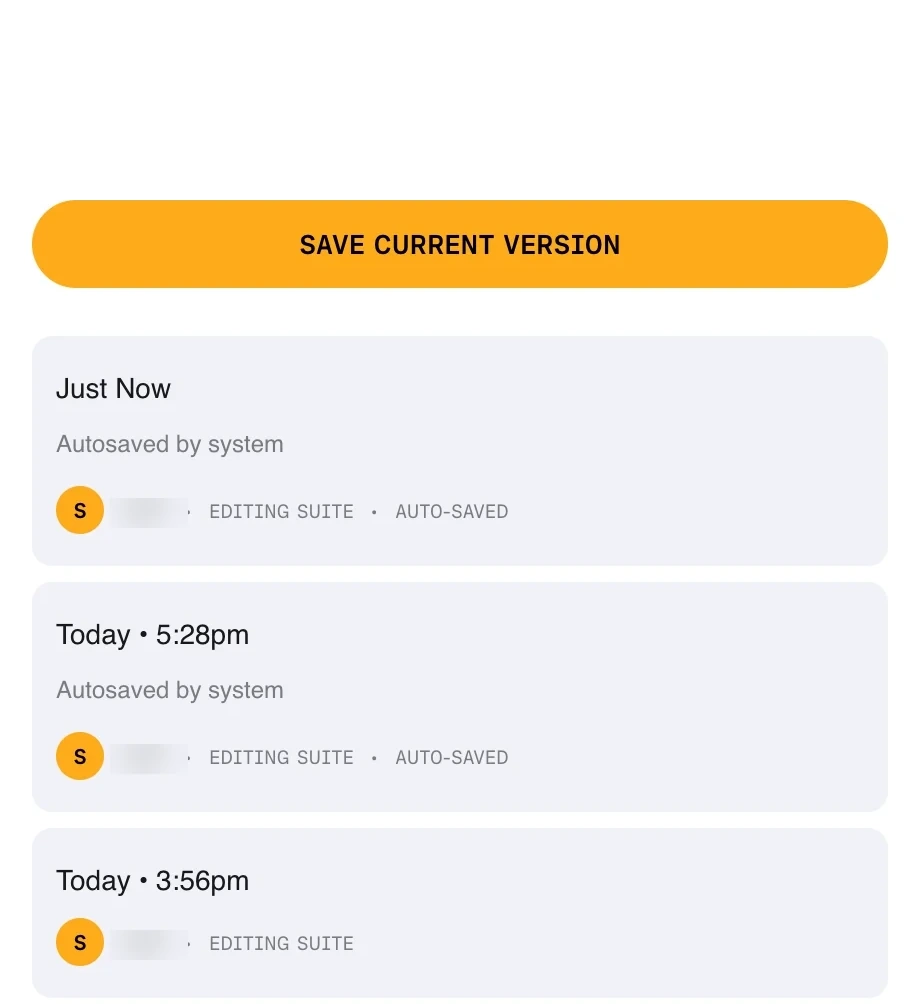
Autosaves appear in the panel alongside the versions you make yourself, but they are not guaranteed to stay listed. If a state matters, save a version.
Leave the page with a change still unsaved and the browser asks you to confirm first.
Named versions
Open Versions in the right sidebar, then choose Save Current Version. The button reads Saving... while it works, and confirms when the version is stored.
Versions you make yourself are listed as User requested save. The ones Prism makes on its own carry Autosaved by system.
Until you save one, the panel says there are no versions yet.
Describing a version
A list of timestamps is hard to read a week later, so name the ones that matter.
- Open the Versions panel
- Select the version you want to describe
- Choose Edit Description and type a short note
Something plain does the job — the cut before the rewrite, or the version the producer approved.
Returning to an earlier edit
Select a version in the list, then restore it.
Restoring replaces what is on the timeline now with the state that version holds.
Save the current state as its own version first if you might want it back.