Your account
Team settings, connectors, usage and sign-out.
Open your avatar at the bottom of the left rail to reach team settings, connectors, usage and plan, Globodex usage and sign out.
Prism does not have a settings page in the usual sense. The menu is the settings.
Opening the menu
The menu opens with your name at the top, then a Team Settings heading over these entries:
- CONNECTORS
- GLOBODEX USAGE
- USAGE & PLAN
- LOGOUT
Team Settings
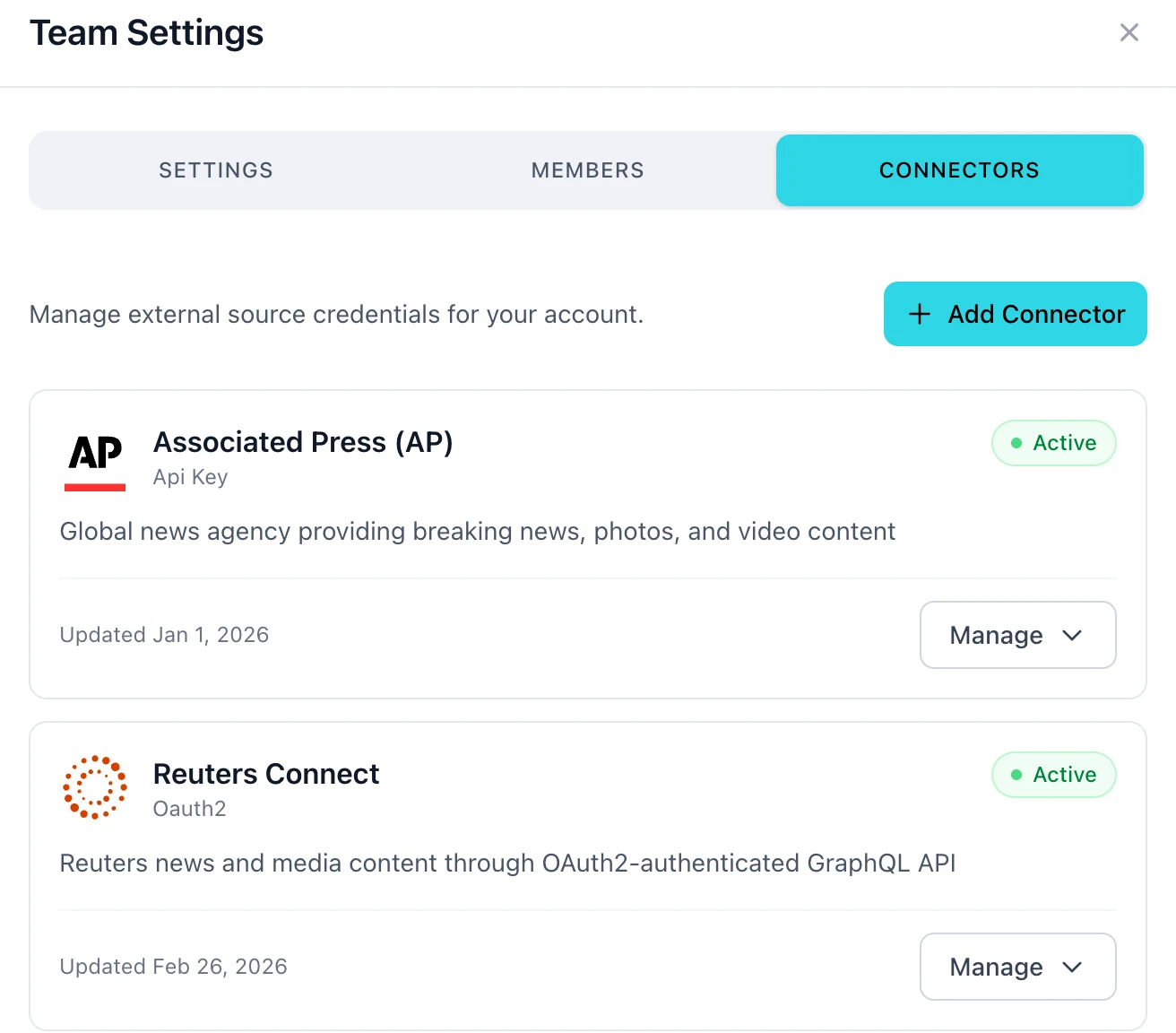
CONNECTORS opens the Team Settings dialog, on its CONNECTORS tab. The dialog has three:
- SETTINGS — your team's plan and billing information
- MEMBERS — team membership, on Team and Enterprise plans
- CONNECTORS — the outside sources linked to your account
Connectors
CONNECTORS is where outside sources are linked to your account, so their material becomes searchable alongside your own.
You connect sources yourself. If one you expect is missing, it has not been connected yet — open CONNECTORS and add it. Connecting Google Drive and Getty previews walk through two of them.
Usage and plan
Usage & Plan itemizes what your account is billed for, month by month. It shows your plan, your credit balance, the minutes of media you brought in and the minutes of video Prism built. Credits explains the figures.
Globodex Usage counts requests made through Globodex, over the last 24 hours or 7 days.
Both are account-level, so what you see depends on your role.
Signing out
LOGOUT ends your session. Prism runs entirely in the browser, so signing out on one machine does not affect another.
What is not here
There is no place to change your own role. On Team and Enterprise plans, roles are set by the account admin.
FAQ
Can colleagues share one login?
No. On an organisation account, everyone gets their own login to the shared workspace. Your account admin requests accounts for new colleagues.