Creating a project
Name a project and bring in your first material.
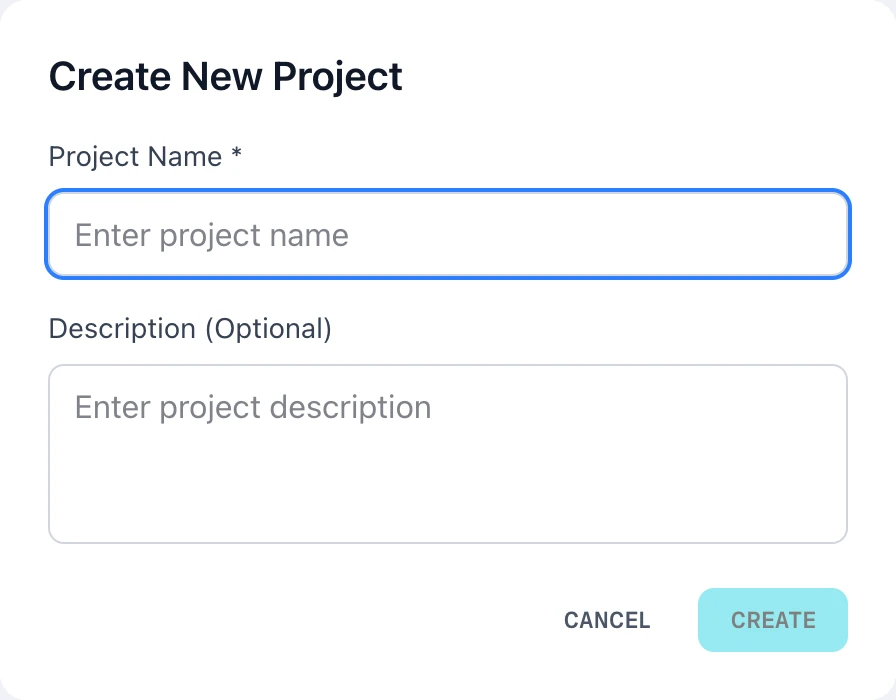
A project is where one story lives. Everything you gather for it, and every video you cut from it, stays inside that project.
Creating one takes a name and nothing else.
Create a project
- Choose NEW PROJECT in the header
- Enter a Project Name — this is required, and CREATE stays disabled until you do
- Add a Description if it helps, then choose CREATE
The home screen also offers a New project card, described as START FROM SCRATCH, which opens the same dialog.
Once created, the project's name appears in the header and Prism opens it on the GET STARTED panel.
What you land on
A new project is empty, so Prism opens it ready to take material rather than showing you an empty shelf.
The GET STARTED panel gives you three ways in:
- Search by keyword, or paste a public link — the ASSETS and WEBSITE tabs change what you search
- UPLOAD FILES, for your own footage, or drag files onto the panel
- ADD FROM MY COLLECTION, for material already in your library
To one side sits the Project Library panel, empty for now, prompting you to add something.
Naming a project
The name is what you will search on later, so make it the story rather than the format. "Coastal wind farm ruling" will find itself again. "Video 3" will not.
Descriptions are optional and searchable.
Opening a project again
Use the project switcher in the header to move between projects. The home screen also keeps a Pick up where you left off row, which lists recent work with its status, and a search box that matches on name and description.
FAQ
Can I rename a project later?
Yes. The options menu on a project card offers Rename, which opens a Rename Project dialog. Projects has the steps.