Presenter uploads
Add recorded narration to an output.
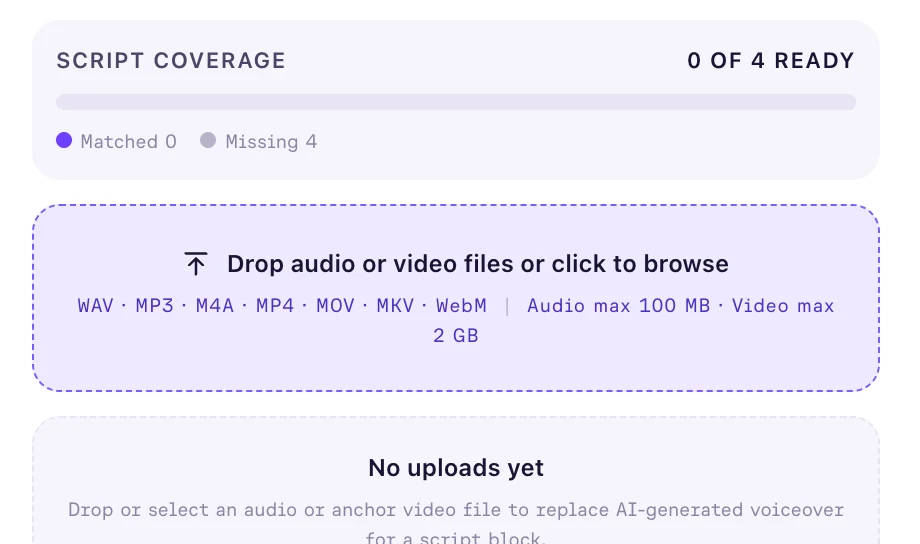
By default, Prism narrates every script block in the output's presenter voice. Presenter uploads replace that with a real recording: you supply the audio, Prism transcribes it, and it attaches to the blocks whose words it matches.
The panel sits in the Writers Room, so this all happens before you commit the script.
Opening the panel
Open the output's Script tab, then choose Presenter uploads in the right rail.
At the top sits Script coverage: a count of how many blocks are ready, and a segmented bar. Its legend reads Matched, Processing, Needs review and Missing.
Read that bar first. It tells you how much of the script still falls to the presenter voice.
Adding a recording
- Drag files onto the drop area, or click it to browse
- Watch the card that appears under In progress
- Wait for the card to reach Ready
You can select several files at once, and they upload one after another.
| What you can upload | Size limit |
|---|---|
| WAV, MP3, M4A | 100 MB per file |
| MP4, MOV, MKV, WebM | 2 GB per file |
A video upload is an anchor video, which puts your presenter on camera as well as in the audio.
What the card tells you
Cards move between three sections as they progress: In progress, Needs review and Ready.
While a file uploads, its card shows the percentage and offers Cancel.
Transcribing audio takes around thirty seconds. A video takes one to three minutes.
A finished card names the block it matched, the length of the recording, and a confidence figure.
A recording that matches nothing is still transcribed, and the card says no block was found.
Cards carry Play and Pause so you can hear a recording without leaving the panel.
When an upload fails
Failed and abandoned uploads collect under Needs review.
An upload has five minutes to reach Prism before it is treated as abandoned.
Choose Retry to start again. Retrying clears the old record rather than resuming it, so pick the file a second time.
If a recording fails repeatedly, re-export it in one of the supported formats and upload the new file.
Removing a recording
Choose Delete on a card to take a recording out of the output.
Deleting cascades: every block linked to that recording loses its audio and falls back to the presenter voice at commit. The only way back is to upload the recording again.
Blocks you leave uncovered
Covering the whole script is optional. Committing a script sets out what Prism offers for blocks with no uploaded audio.
FAQ
Can I record in Prism?
Not in this panel, which takes finished audio and video files. When you commit, Missing voiceover coverage offers Record in browser… for any block still without a recording.
Does an upload change the words in the script?
No. The transcript is used for matching, and your script text stays as you wrote it.
Can one recording cover more than one block?
Yes. A single read can be matched across consecutive blocks, and each block keeps its own trim.