Selecting and moving clips
Select one clip or many, and rearrange them.
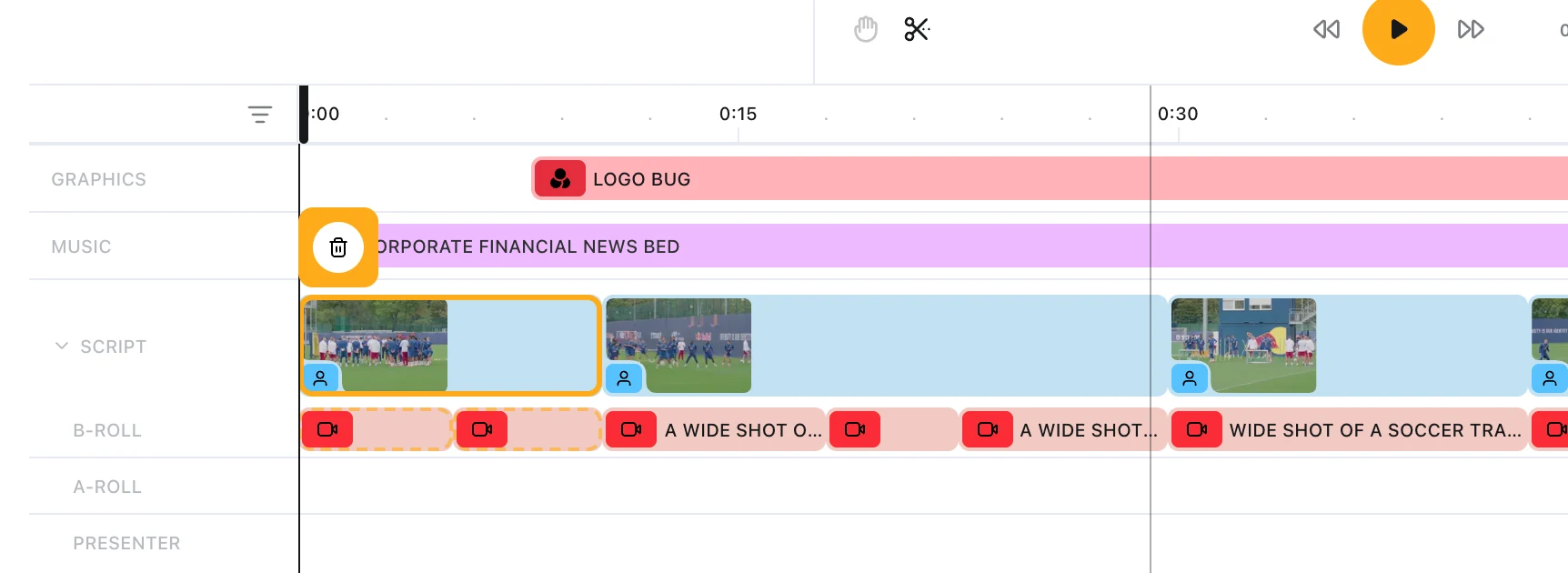
Select one clip to edit its properties. Select several clips to move or delete them together.
Selecting one clip
Click a clip.
Two things appear: the properties panel opens to the left of the player, and a small orange bar with a trash button appears above the clip.
Single-select is the full-control mode: it is the only one that opens a clip's properties, and the only one in which a clip can be trimmed, framed or coloured.
Selecting several
Drag a rubber-band box across empty timeline background.
Multi-select is for arranging, not for detail. It has no properties panel — a group can be moved and deleted together, but nothing about an individual clip can be changed while more than one is selected.
The marquee skips the content track, the captions track, and any locked clip.
Leaving a selection
Click empty background.
Moving a clip
Press on a clip's body and drag. A small movement counts as a click, and anything past about three pixels becomes a drag.
- Drag sideways to change when the clip plays
- Drag onto another compatible track to move it there
- Drag onto the border between tracks to create a new track
Ghost blocks follow the drag, showing where the clip will land and how long it runs.
What a drag will do
Clips never overlap. A drag either stops at the neighbouring clip or drops into the nearest gap that fits.
When you drag media in from the Library or Elements panel, the ghost tells you which of three things is about to happen.
| Ghost | Meaning |
|---|---|
| Green, Gap Fill | The media fills an empty stretch |
| Amber, Insert | Existing clips move along to make room |
| Orange, no label | A plain drop into free space |
Moving several clips at once works sideways only, and the group travels as far as its most constrained member allows. The whole move counts as one undo step.
Reordering the story
To change the order of the story itself, drag a block along the content track and drop it on another. The two swap places.
Deleting a clip
Select the clip and choose the trash button on the orange bar above it. Prism always asks you to confirm.
Undo brings the clip back. Deleting several selected clips is one undo step, not one per clip.
Deleting the CLOSED CAPTIONS clip turns captions off. Your caption styling is kept, so turning captions back on restores it.