Graphics
Add lower thirds and branded elements.
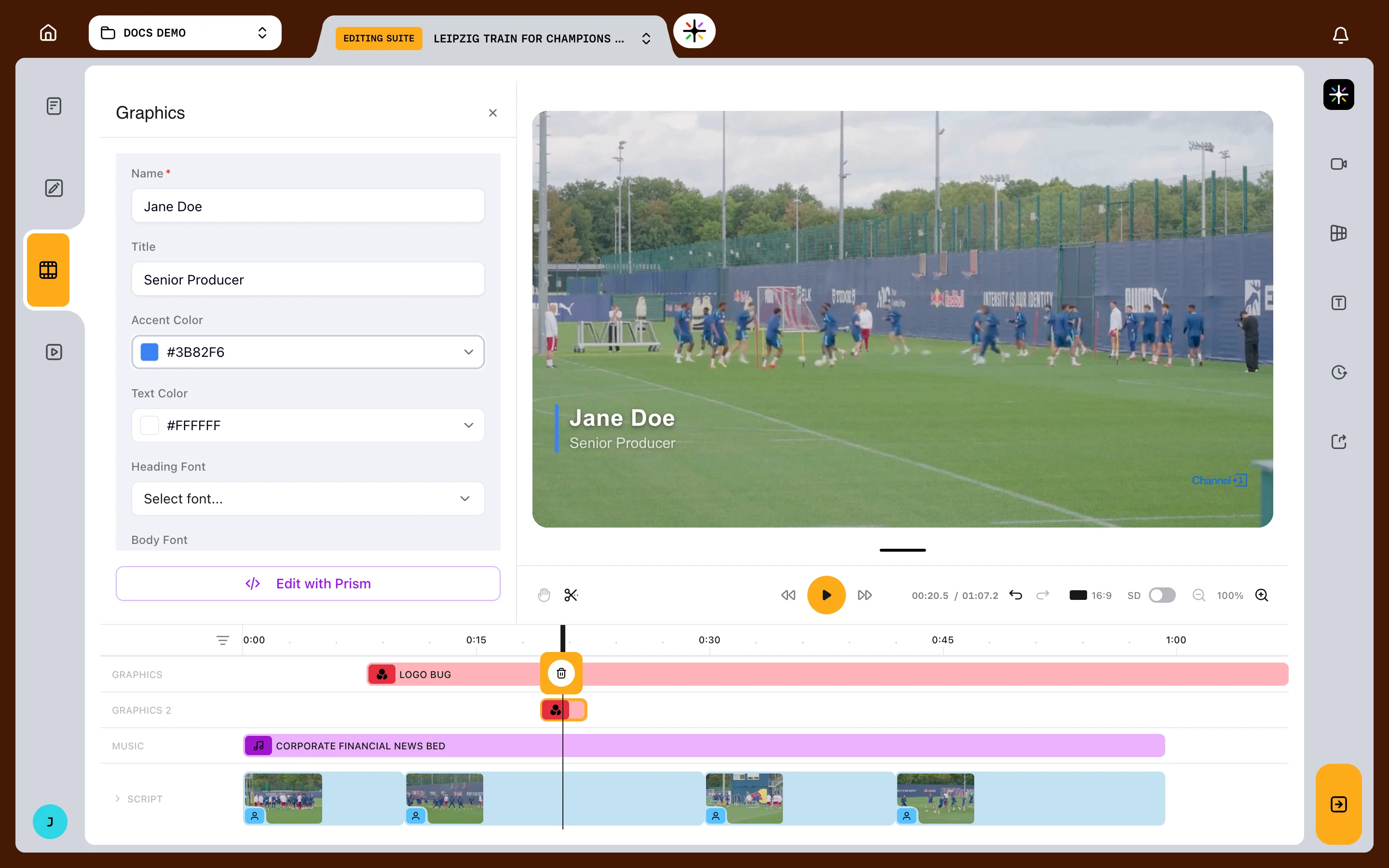
Add graphics from Prism's shared library or your brand kits, or on Enterprise plans make one with Create with Prism. They live on GRAPHICS tracks over your footage.
Where graphics come from
Open Elements in the right sidebar and choose the Visual tab.
The panel holds two libraries.
- Prism Graphics is the shared library, available to every account
- Brand Graphics is your own account's, organised by brand kit
Use the brand kit switcher across the top to narrow both lists, or leave it on All.
Adding a graphic
- Open Elements and choose the Visual tab
- Find the card you want, using Show All if the section is truncated
- Drag the card onto a graphics track in the timeline
Dragging is the only way to place a graphic. There is no add button on the card.
Each placed graphic takes its clip label from the graphic itself, so a corner logo bug reads as its own name on the timeline.
Drop onto the border between two tracks to make a new graphics track. You can add as many as you need; each is named in sequence — Graphics 2, Graphics 3, and so on.
Filling in a lower third
Select the placed clip and the graphics properties panel opens beside the player.
A lower-third template's card previews it as Jane Doe, Senior Producer. Placed on the timeline, its Name and Title fields start out holding just the words Name and Title, and the PARAMETERS section is where you replace them.
Parameters vary by graphic. A byline offers a name, a title, an accent colour and a text colour; a logo bug offers a logo, a corner position, a width and an opacity.
A text parameter can either hold your own words or follow the story. Its menu offers Custom for text you type, and a Data Bindings section listing the values Prism can fill in. Choosing a binding drops a token into the field, which Prism fills in when the video is produced.
Using your brand's logo
Logo parameters offer three sources.
- Pick from Brand Logos for a logo already in the brand kit
- Choose Browse... under Account Assets for a file your account holds
- Paste a Custom URL
Logos must be PNG or JPG.
Making a graphic with Prism
Available on Enterprise plans. Create with Prism is a purple card at the end of the Visual tab.
- Drag Create with Prism onto the timeline to open the graphics chat
- Describe what you want in the message box
- Watch the preview above the chat as Prism builds it
- Choose Save as Template, name it, and pick a brand kit or All Graphics to save into
Select an existing custom graphic and choose Edit with Prism to reopen the same chat against it.
Importing your own graphic
Choose the upload icon in the Brand Graphics section header, titled Upload graphic (.mov with alpha).
Imports must be ProRes QuickTime files, ideally ProRes 4444 with alpha. Anything else is refused with Imported graphics must be a ProRes .mov (QuickTime) file.
Cards move through Uploading, Transcoding… and Ready. A card that is still transcoding cannot be dragged onto the timeline.
An imported graphic has fewer controls than a template: a volume slider, framing and colour, but no parameters and no Edit with Prism.
How long a graphic runs
A template graphic drops onto the timeline three seconds long.
An imported graphic drops at its own length and cannot be stretched past it. Trim either by dragging the clip's edges in the timeline — see Trimming and splitting.
FAQ
Can I put a graphic on a locked track?
No. Graphics belong on graphics tracks, and locked tracks refuse new media. See Tracks and locked tracks.