Assignment Desk
Where you brief a video and start Prism on it.
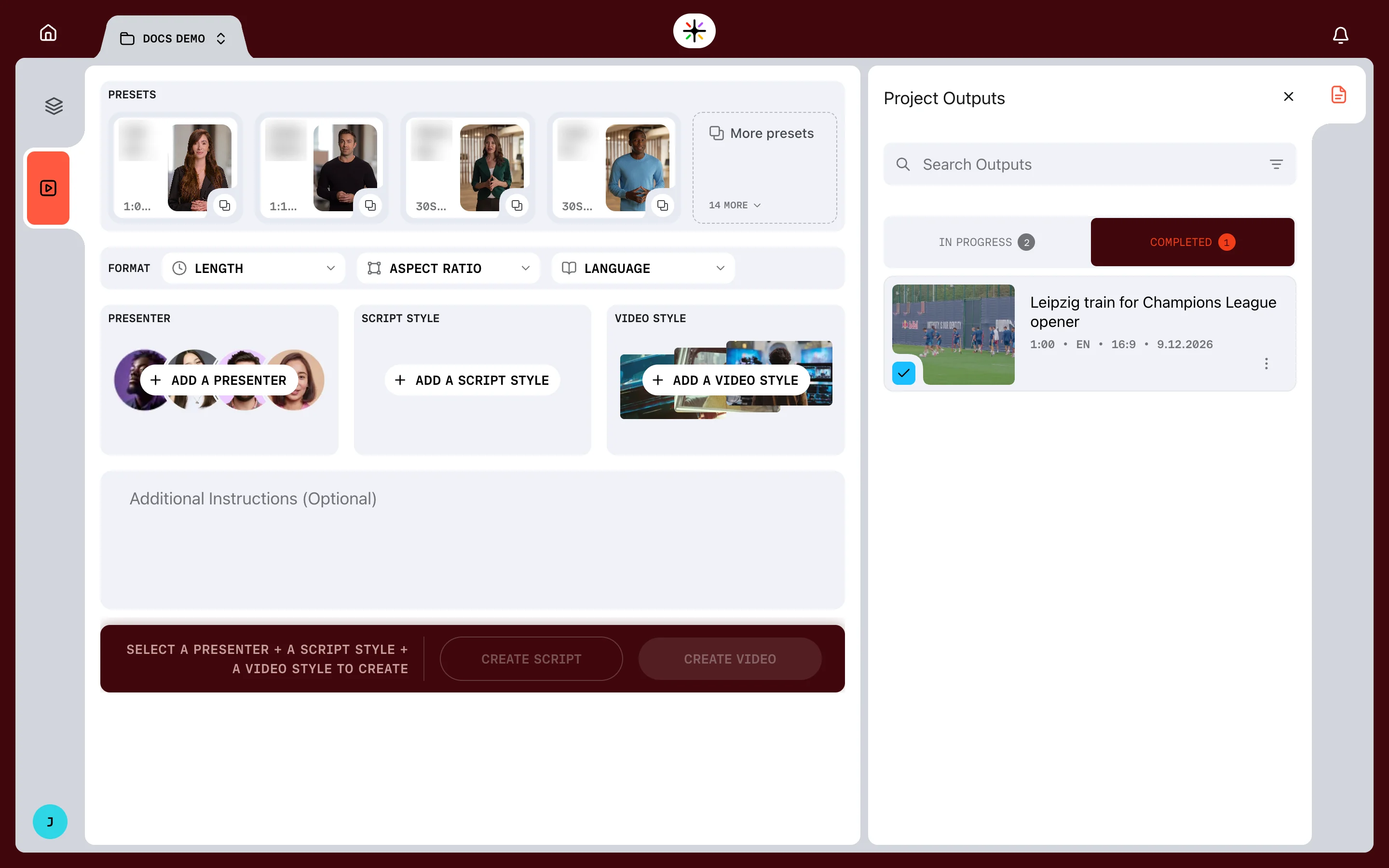
The Assignment Desk is where you brief a video. You choose who presents it, how it is written and how it is cut, and Prism makes it from there.
Getting there
Open a project, then choose GO TO ASSIGNMENT DESK at the foot of the Project Library panel. The desk also has its own icon in the rail on the left, under the library.
The desk works on the project you have open. Every video you brief there draws on that project's Project Library.
What is on the desk
From top to bottom:
| Area | What it does |
|---|---|
| PRESETS | Saved briefs. One choice fills everything below it |
| FORMAT | LENGTH, ASPECT RATIO and LANGUAGE |
| PRESENTER | The voice that delivers the script |
| SCRIPT STYLE | How the words are written |
| VIDEO STYLE | How the edit is cut and dressed |
| Additional Instructions (Optional) | Anything else Prism should know about the assignment, in your own words |
| The action bar | CREATE SCRIPT and CREATE VIDEO |
On the right, the Project Outputs panel lists the project's videos under IN PROGRESS and COMPLETED, with Search Outputs above them.
Three choices are required
Prism needs a PRESENTER, a SCRIPT STYLE and a VIDEO STYLE before it makes anything.
Until all three are set, the action bar names what is missing, starting from SELECT A PRESENTER + A SCRIPT STYLE + A VIDEO STYLE TO CREATE. It shortens as you fill each slot, and both create buttons enable once the last one is set. A preset fills all three at once.
Two ways to create
CREATE SCRIPT drafts the script and stops, so you can read it first. CREATE VIDEO goes straight through to a first cut.
Where to go next
Briefing a video covers each part of the brief, from presets to the format.
Creating a script or video covers what happens once you create, and how to follow the work.
Styles and presets explains the styles you choose from.