Searching your library
Find footage across your own media.
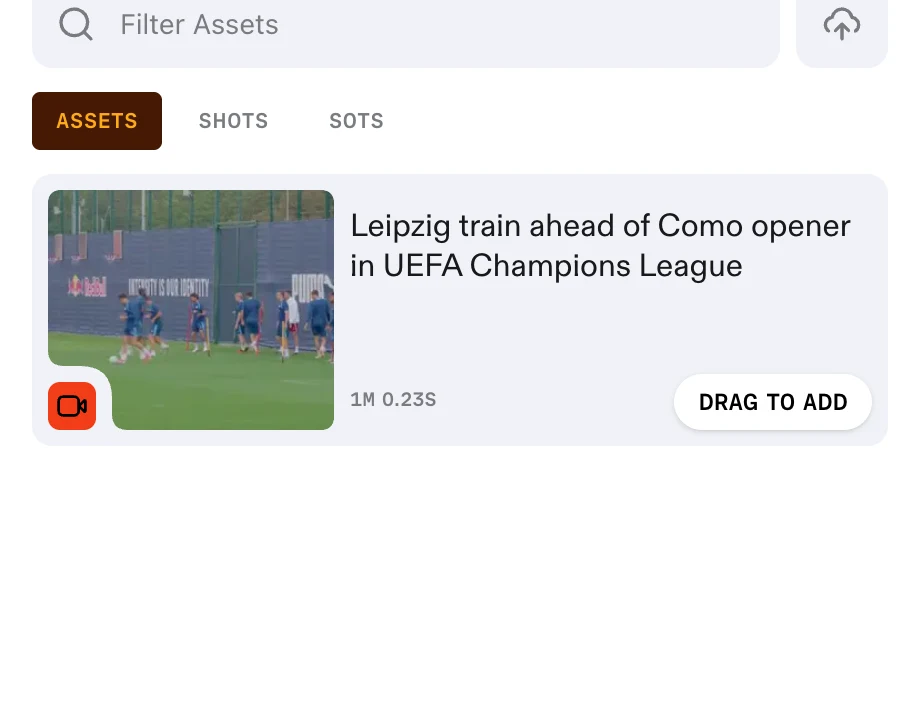
Asset Search is your whole library in one place — everything the account has gathered, across every project.
Search reads inside your material, not just its titles, so you can look for a moment rather than a file.
Opening Asset Search
Asset Search is the magnifying-glass icon in the rail down the left side of the app. The rail carries no labels, and hovering an icon does not name it.
Beside the search box are UPLOAD, for your own files, and a control that imports from a link. Below it, a row of sources — LIBRARY and each provider connected to your account — switches what you are searching.
Before you search
Asset Search opens on your newest assets rather than an empty page: anything recently uploaded or pulled in from a link, with a count of what it is showing.
Start there when you know something arrived this morning but not what it was called.
Running a search
Type into Search your library or connected sources… and run the search. Nothing runs while you are still typing.
A large library takes a moment to search, and Prism shows that it is working.
Narrowing the results
FILTERS opens the filter panel beside the results.
ASSET TYPE is a checkbox list with six options:
- Video
- Image
- Audio
- Text
- Research
- Website
Tick as many as you want. Untick them to widen the search again.
Reading a result
Each result card shows:
- A FULL ASSET badge, marking it as a whole item rather than a fragment
- The title
- The duration, for anything with a running time
- A + USE action
- A provenance line reading the media type, the source and the date
The provenance line is how you tell two similar-looking clips apart.
Selecting what you want
Choose + USE on a card to add it to your selection.
A running count appears as you go, and Clear selection empties it if you change your mind.
Once anything is selected, USE ASSETS becomes available.
Sending a selection to a project
USE ASSETS asks where the material should go.
When you arrive from inside a project, the destination is already known. A banner names the project you are adding to, and the confirm button counts the selection — ADD 1 TO COASTAL WIND FARM RULING, for example.
Everything you confirm appears in that project's Project Library.
FAQ
Why can't I find something I uploaded a minute ago?
It may still be processing. A file is searchable once indexing finishes, and the Activity tray shows where it has got to.
Can I add the same asset to more than one project?
Yes. Adding makes the asset available to a project rather than moving it, so the same material can serve several.