The timeline
Read and navigate the timeline.
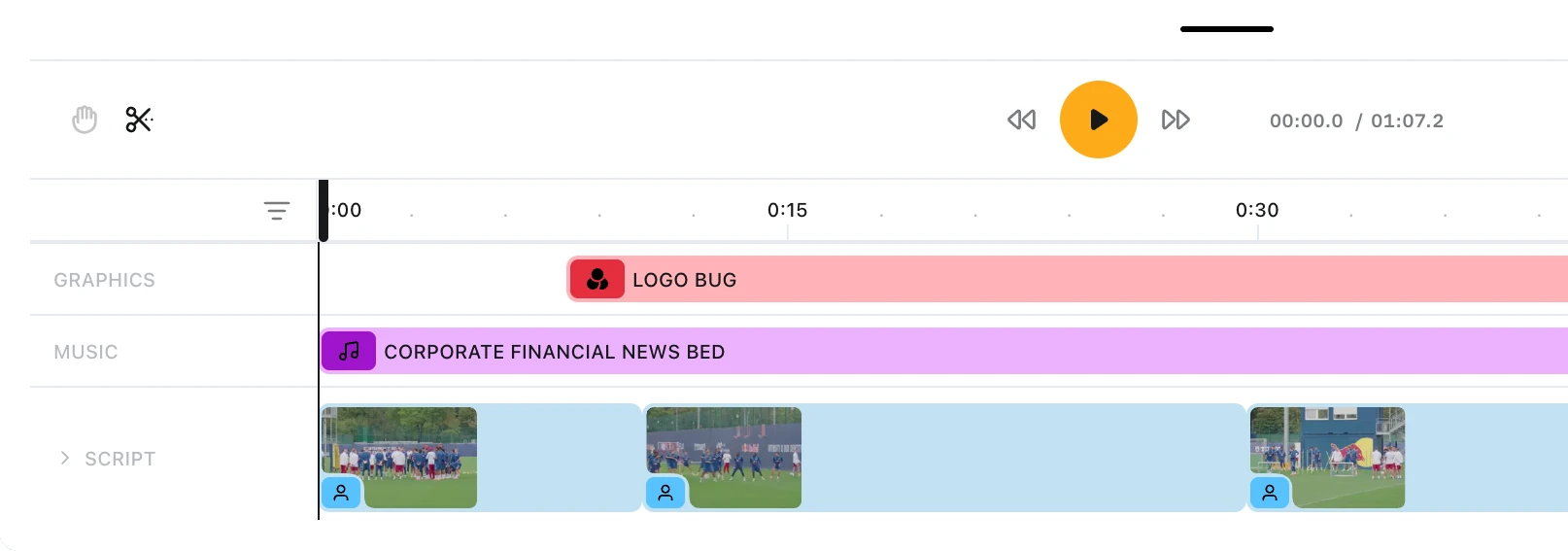
The timeline is the whole track area along the bottom of the Editing Suite. It shows every clip in the edit, in time order.
It has two columns. Track labels sit in a fixed column on the left, and everything else — the ruler, the tracks, the playhead — scrolls horizontally beside them.
How tracks are stacked
Tracks always appear in the same order, top to bottom.
| Group | What it carries |
|---|---|
| Captions | The CLOSED CAPTIONS clip, when captions are on |
| Root | Music and graphics that run across the whole edit |
| Content | Your blocks, in order, on the row labelled SCRIPT |
| Block | One block's B-roll, voiceover and graphics |
The content track is the tallest row, because it carries the story. Everything above and below it dresses that story.
Empty tracks are hidden unless you added them yourself. Tracks and locked tracks has the detail.
The ruler and the playhead
The ruler runs across the top of the scrolling column, and the playhead marks where you are.
- Click anywhere on the ruler to move the playhead there
- Drag the playhead handle to scrub through the edit
Playback pauses while you drag the playhead, and resumes on release if it was running.
To scan without clicking, turn on Preview on hover in the timeline settings. The player follows your pointer, then snaps back to the real playhead when you leave.
Zooming in
The timeline zooms from 100% to 1000%, using the zoom buttons at the right of the control bar.
A Reset to 100% button appears beside those buttons whenever you are zoomed in. Zooming out stops at 100%, which is the whole edit at once.
Panning when zoomed
Above 100%, you can grab the timeline and drag it sideways.
Click the hand button in the control bar to enter pan mode, drag, then click it again to leave.
At 100% that button is disabled, and its tooltip reads Pan disabled at 100% zoom. There is nothing off-screen to pan to.
Gaps and boundaries
A gap is empty time on a track between two clips. Prism marks each one with its start and end, so silent stretches are visible rather than guessed at.
Turn on Show block dividers in the timeline settings to draw a vertical line at every block boundary, so you can see which block a clip belongs to.
Changing the timeline's height
Drag the handle between the player and the timeline.
The timeline will not grow past 40% of the window height, and it will not shrink below a narrow strip. Drag it back to full size to return it to automatic height.
That height is not saved. It returns to normal the next time you open the page.
FAQ
Do my timeline settings persist?
The five toggles do, in this browser. The timeline's height does not.