Colour
Adjust temperature, contrast and saturation.
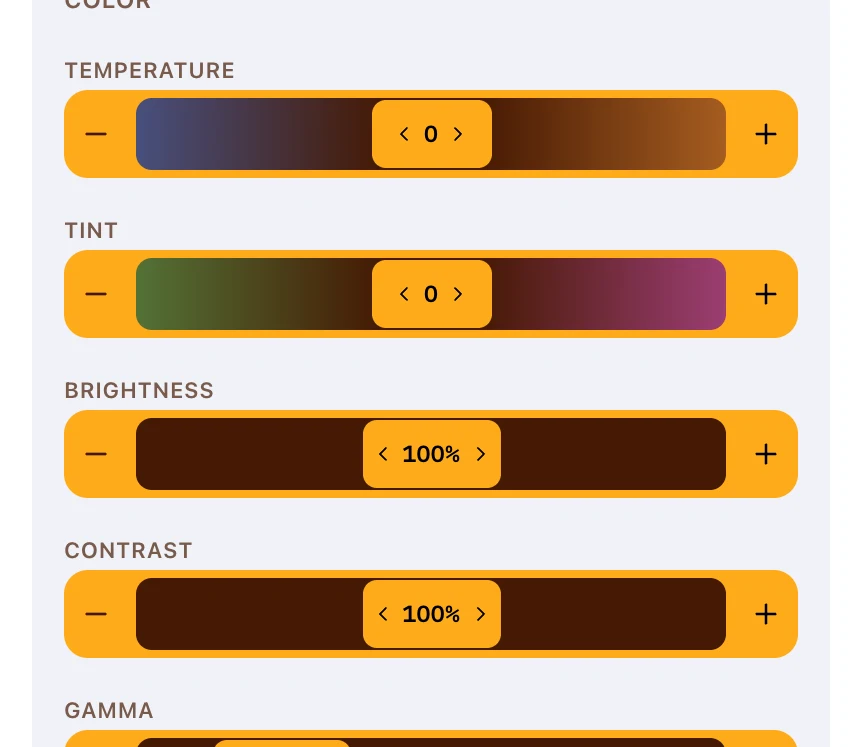
Use the Color section of a clip's properties panel to match footage from different sources. It holds six controls and a Reset, and works on footage, SOT clips, still images and imported graphics.
Opening the colour controls
Select a clip in the timeline, and its properties panel opens beside the player.
Scroll to Color, below Size & Position and Crop.
Each field can be dragged to scrub or clicked to type an exact number, as the hint says: Drag to adjust · click to type.
What the six controls do
| Control | Range | What it changes |
|---|---|---|
| Temperature | −100 to 100 | Warm or cool cast, negative cooler and positive warmer |
| Tint | −100 to 100 | The green-to-magenta balance, for lighting a camera read wrong |
| Brightness | 0% to 200% | Overall level, lifting or dropping the whole picture |
| Contrast | 0% to 200% | Separation between the dark and light parts |
| Gamma | 20% to 500% | Mid-tones, without moving the darkest and brightest ends as far |
| Saturation | 0% to 300% | Colour intensity, down to grey at zero |
Colour changes affect the render as well as the preview, unlike the player's own viewing settings.
An order that works
Corrections interact, so a fixed order saves you re-doing work.
- Set Brightness until the picture sits at roughly the right level
- Set Contrast for the separation you want
- Set Gamma to lift or settle the mid-tones
- Set Temperature, then Tint, until skin tones look right
- Set Saturation last, once everything under it is settled
Judge each change against the player rather than the numbers, and check a frame with a face in it.
Matching two clips
Colour is set per clip, and there is no control that copies a look from one clip to another.
Match them by hand instead.
- Note the values on the clip you are happy with
- Select the second clip and type the same values into its Color fields
- Adjust from there, since two cameras rarely need identical numbers
Move the playhead to a cut point so both clips are close together in view while you work.
Starting again
Reset at the head of the Color section returns the clip to how it looked before you touched it.
It clears all six controls at once. There is no way to reset one of them on its own, so note a value you want to keep before you reset.
Clips with no Color section
Not every clip is graded here.
- Template graphics carry their own colour parameters instead, set under PARAMETERS — see Graphics
- Caption colours belong to the caption style, not to a clip — see Caption styles
Imported graphics do have a Color section, since they are video files like any other.
FAQ
Does Reset undo my crop as well?
No. Reset in Color clears colour only, and Crop has a Reset of its own.