Captions
Turn captions on and choose how they look.
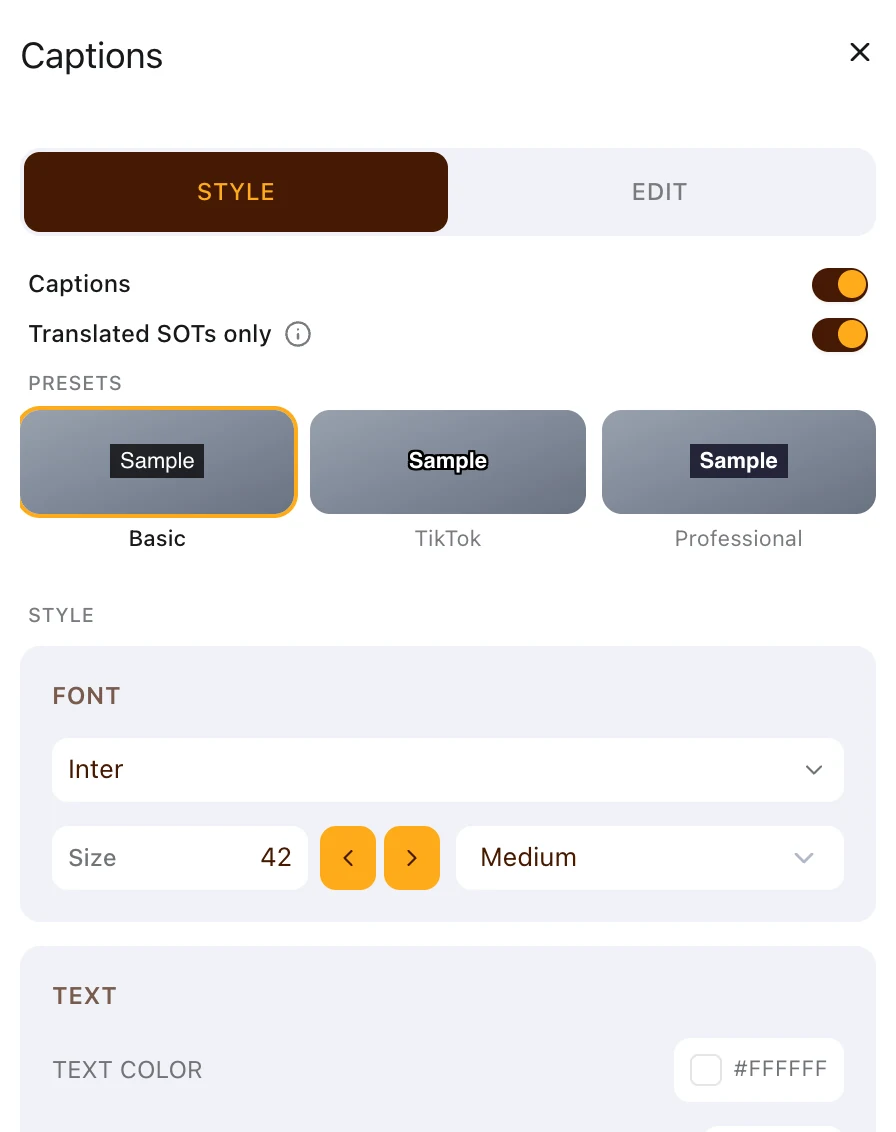
Captions are text drawn over the video, timed from the audio Prism already holds for your edit.
They start off unless the video style you briefed with turns them on, and they arrive as a single CLOSED CAPTIONS clip on the timeline.
Use Style to change how captions look — see Caption styles. Use Edit to change their text and timing — see Editing captions.
Opening the Captions panel
Choose Captions in the right sidebar of the Editing Suite.
The panel has two tabs, Style and Edit, and opens on Style.
Edit stays greyed out until captions exist, with the note Apply a caption style first to enable editing.
Turning captions on
- Open Captions and stay on the Style tab
- Switch on the master Captions control at the top of the panel
- Choose one of the three preset cards under Presets
Captions then appear on every clip that can carry them.
The style inspector below the presets stays greyed out and inert while the master switch is off.
Which clips get captions
Captions come from clips carrying narration or a quote — your script blocks and your SOTs.
A clip that cannot carry them shows a dashed, locked card in the Edit tab reading No captions on this block.
That is not a fault to fix, because B-roll and music have no speech to caption. Blocks and SOTs are defined in Core concepts.
Captioning translated SOTs only
A Translated SOTs only switch appears when at least one SOT in the timeline has a translation.
Turning it on scopes captions to translated SOT blocks and removes captions from every other clip.
Choosing a font
The Font section holds a picker with three groups.
- Pick under Brand Fonts for the active brand kit's PRIMARY or SECONDARY face
- Pick under Fonts for the built-in list, which previews and renders identically
- Choose Browse... under Account Assets for a font your account has uploaded
Uploaded fonts must be TTF, OTF, WOFF or WOFF2.
Positioning captions on the frame
Captions sit near the bottom of the frame by default. There are two ways to move them.
- Type or drag X, Y and Width under Position, then pick Left, Center or Right
- Drag the dashed Captions frame drawn over the player
The drag works only with the Style tab open and playback paused. It snaps to the centre line and to the default height.
Turning captions off
Switch the master Captions control off, then confirm Remove Captions.
Prism keeps the style you had set, so switching captions back on restores it instead of resetting to a preset.
Limits
One caption line is on screen at a time, so long sentences arrive as a sequence of lines. Use Characters per line to decide how much text each line holds.
Captions cannot be styled clip by clip. One style covers the whole edit, while wording and timing stay per block.